Quickly Find Old Files in Your Cloud Storage
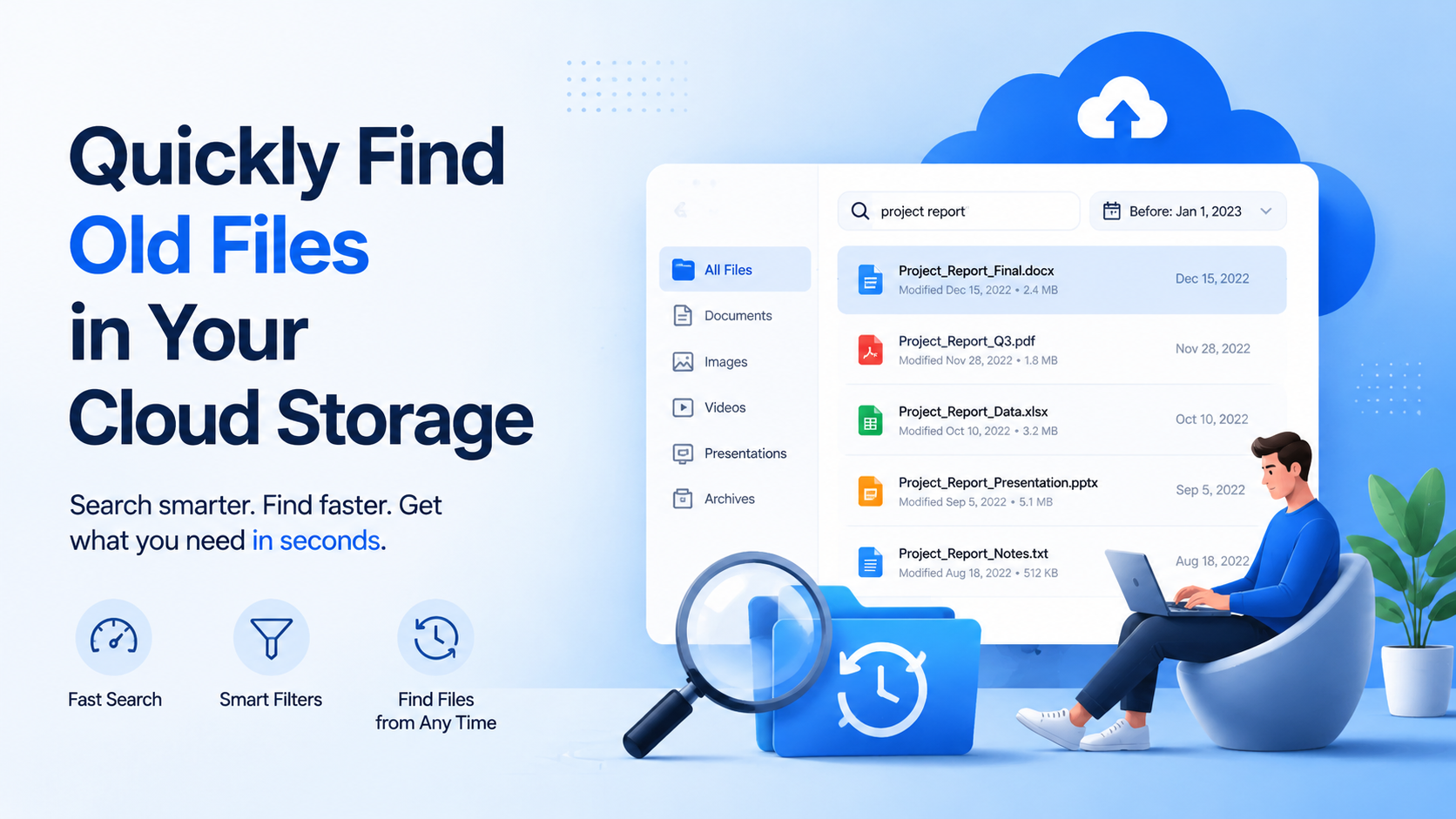
how to find old files in cloud storage quickly is a process of using advanced search tools and proactive organization. Key methods include mastering date-range filters in Google Drive and Dropbox , employing AI-powered semantic search in Microsoft OneDrive , leveraging file activity logs, and using dedicated search uti
The Challenge of Retrieving Archived or Old Files
You know the file is there. Somewhere in the vast, silent expanse of your cloud storage, a project proposal from 18 months ago, a family video from three holidays back, or a critical financial spreadsheet lies waiting. You have the space, you paid for the peace of mind, but when the moment comes to retrieve it, you’re met with a digital silence more profound than any physical filing cabinet. This is the modern retrieval paradox: we’ve solved the problem of storage, but we’ve inadvertently created a new challenge of discovery.
The Scale of the Problem: A Numbers Game
Consider the average professional user. Over five years, they might accumulate over 50,000 files in their cloud storage. That's not just documents; it's countless iterations of the same file, photos from every event, screenshots, downloaded assets, and shared folders from departed colleagues. When you need to locate a single, specific item from this ocean of data, a linear scroll is impossible. A simple search for "budget" might return 1,200 results spanning half a decade. Without a strategy, you're not searching—you're excavating.
The Fading Memory: How Our Recall Fails Us
Our brains aren't built for digital metadata. When trying to recall a file, we often grasp for the content we remember, not the container we created. You might vividly recall the client's feedback on slide 7, but have zero memory of the file name—was it Final_Report_v4_approved.pptx or ClientReview_Q3.pptx? You remember the feeling of the family reunion video, but not the exact date it was uploaded. This cognitive gap is where traditional, simplistic search functions break down, leaving you to guess keywords and sift through irrelevant results.
The Cost of Inefficiency: More Than Just Minutes
The struggle to find old files isn't a minor annoyance; it has tangible costs. A 15-minute search for a contract, repeated across a team of ten, wastes over two hours of collective productivity. In a high-pressure moment—responding to a legal inquiry, preparing for an investor meeting—this delay escalates stress and undermines trust. The table below contrasts the ideal retrieval scenario with the common, frustrating reality.
| Ideal Retrieval | Common Reality |
|---|---|
| Search executed in under 30 seconds. | 15-45 minutes of combing through folders and results. |
| Confidence in finding the correct, final version. | Uncertainty, leading to opening multiple similar files to compare. |
| Seamless workflow with no context switching. | Fragmented focus, breaking away from primary tasks. |
| Trust in the system's organization. | Ad-hoc, panic-driven searching that reinforces disorganization. |
The Legacy of Bad Habits: Chaos Compounds Over Time
The root of the retrieval challenge is often planted years earlier. In the moment of creation, speed trumps order. We save files with cryptic names, dump everything into a monolithic "Downloads" or "Misc" folder, or accept default names like "IMG_49201.jpg." This creates a compounding problem: every month of poor filing adds another layer of sediment over your valuable data. By the time you need that old file, you're not just fighting your current self—you're battling every past version of you who chose convenience over clarity.
The most expensive file is not the one you lost, but the one you can't find in time.
This initial challenge sets the stage for a necessary evolution in how we interact with our digital archives. It's no longer enough to simply "save." We must learn to save with future retrieval in mind, understanding that the true value of cloud storage isn't in its capacity, but in its accessibility—even years later.
Mastering Date-Based and Timeline Search
When memory fails, time provides the most reliable coordinates. The date a file was created, modified, or last opened is a powerful, objective piece of metadata that every cloud storage platform tracks meticulously. Mastering date-based and timeline search transforms a chaotic digital warehouse into a navigable, chronological archive. This method is your first and most potent tool for pinpointing old files quickly.
Understanding the Three Critical Dates
Not all dates are created equal for search purposes. Modern systems like fii.one typically log three key timestamps for every file, each telling a different story:
- Created Date: The immutable timestamp of the file's birth in your storage. Ideal for finding original project drafts, scanned documents, or photos uploaded from a specific event.
- Modified Date: The last time the file's content was altered. This is your go-to for locating the final version of a report or the most recent edit of a design mockup.
- Last Opened/Accessed Date: A record of when you last viewed or interacted with the file. This is surprisingly useful for retracing your steps—finding that contract you reviewed three months ago but can't recall by name.
For instance, searching for files modified in July 2023 will surface the final budget spreadsheet for that fiscal year, while searching for files created in July 2023 might show the initial, rough draft you started with.
Crafting Precise Date Range Queries
The real power lies not in searching a single date, but in defining a timeframe. Vague searches yield vague results. Instead of thinking "sometime last year," train yourself to think in quarters, project phases, or specific months. A search for "Q2 2022 marketing assets" is far more actionable than "old marketing pictures."
Most advanced platforms allow for natural language or filter-based range queries. For example, in fii.one, you could use filters like "modified: 2023-01-01..2023-03-31" to isolate all files changed in the first quarter. Or, to find files from a past client engagement that lasted six weeks, you might search for files created between April 15 and May 31, 2022. This precision cuts through thousands of irrelevant files instantly.
The Visual Timeline: A Cinematic Approach to Retrieval
Beyond text-based filters, the most intuitive method is a visual timeline or calendar view. This cinematic tech feature, available in services like fii.one, presents your files as a stream of thumbnails or icons plotted along a horizontal timeline. You can literally "scroll back in time" through your storage. Seeing a cluster of image previews from a week in October 2021 can trigger the visual memory needed to identify the correct file, even if its filename is cryptic. It turns retrieval from a logical puzzle into a visual journey.
| Search Type | Best For Finding... | Example Query/Focus | Typical Result Precision |
|---|---|---|---|
| Single Date (Modified) | The final state of a file on a known day. | Files modified on 2024-03-15. | Very High (narrows to a specific day's work) |
| Date Range (Created) | All raw materials from a specific project phase. | Files created between 2023-06-01 and 2023-08-01. | High (captures the project's genesis) |
| Visual Timeline Scroll | Files when filename or content is forgotten, but visual or temporal context remains. | Scrolling to November 2022. | Contextual (relies on pattern/visual recognition) |
Combining Date with Other Filters
For the fastest retrieval, date search should rarely work alone. It is the foundational layer upon which you add other criteria. Start by locking down the timeframe—say, the last quarter of 2022. Then, if you know the file was a PDF, add the file type filter. If you remember it contained the word "proposal," add that keyword. This layered approach, starting with time, systematically eliminates 99% of the haystack before you even look for the needle. In practice, a search for files modified in January 2024 that are spreadsheets and contain "Q4 Review" will deliver your target in seconds.
Time is the most consistent label your files will ever have. By mastering its use, you turn the relentless forward march of the calendar into your most trusted search assistant.
Using Keywords and Partial Recall Effectively
When a date or timeline search draws a blank, your memory becomes the most powerful search engine. You might not remember the exact filename, but you almost certainly recall something about the file’s content, purpose, or context. This is where moving beyond simple filename searches to intelligent keyword strategies and partial recall becomes critical. Modern cloud storage like fii.one indexes the full text within documents, not just titles, turning vague memories into precise search results.
Think Beyond the Filename: The Power of Full-Text Search
Consider this: a critical project proposal from 18 months ago was likely named something generic like “Q3_Plan_v12.docx.” Searching for that is futile if you’ve forgotten the naming convention. Instead, recall a unique phrase from inside the document. Was there a distinctive product codename like “Project Aether”? A specific budget figure like “$247,500”? A client’s unique company slogan? Typing these terms directly into your cloud storage’s search bar will scan the document’s contents and surface it instantly. fii.one’s search engine processes this data in milliseconds, scanning thousands of files to match your intent, not just a label.
Strategizing Your Keyword Queries
Effective searching is a skill. Start broad with a single, strong keyword related to the file’s core topic, then layer in additional terms to narrow the field. For example, searching just “invoice” might return 500 files. Adding “2022” cuts it down. Adding a client name like “AcmeCorp” refines it to a handful. If you recall the file type, use the search syntax your platform supports (e.g., type:pdf or ext:jpg). A structured approach looks like this:
- Anchor Keyword: The main subject (e.g., “marketing”).
- Contextual Filter: A person, location, or event (e.g., “trade show”).
- Content Clue: A unique phrase or data point you remember (e.g., “brand activation”).
- Technical Limiter: File type or approximate date range.
Harnessing the Fragment: What to Do When You Only Remember a Piece
Partial recall is incredibly common. You remember a fragment of a name, a color from an image, or the software used to create a file. Modern cloud systems can work with these fragments. Use wildcard characters (like * ) to stand in for missing parts. Searching for “present*” can find “presentation,” “presented,” and “presents.” If you recall the file was created in Photoshop but not its name, search for the native file extension, like “.psd”. The table below contrasts ineffective vague searches with effective partial-recall strategies.
| What You Partially Recall | Ineffective Search | Effective Keyword Strategy |
|---|---|---|
| A logo file with “blue” and “star” | “logo” | type:image blue star or *.ai blue star |
| A contract with “termination clause” and “30 days” | “contract” | "termination clause" "30 days" |
| A spreadsheet about regional sales in “Q4” | “sales data” | ext:xlsx Q4 region* |
| A video from a company retreat | “company fun” | type:video retreat 2023 |
Leveraging Metadata and Tags Proactively
While searching existing content is powerful, the most effective users build a retrieval-friendly environment. This starts with adding keywords directly into a file’s metadata or using your platform’s tagging system. When you upload a file, take 10 seconds to add a few descriptive tags. For instance, tag a project photo with “team,” “launch_event,” “product_x.” Later, searching any one of those tags will collate all related files across different formats and folders instantly. Think of tags as your personal, multi-dimensional filing system that exists alongside the actual file structure, creating multiple pathways to the same destination.
The goal is not to remember the file’s location, but to remember enough about the file that the system can compute its location for you.
By mastering keyword logic and learning to leverage even the faintest memory fragment, you transform your cloud storage from a passive archive into an active, responsive digital library. This approach, especially when combined with fii.one’s deep content indexing, ensures that no file is ever more than a few keystrokes away, regardless of when it was stored.
Leveraging Activity Logs and Version History
When a simple search for a filename fails, your cloud storage’s metadata often holds the key. Think of activity logs and version history not as obscure admin panels, but as a detailed, searchable ledger of your digital workspace. These features transform your storage from a static archive into a dynamic record, allowing you to trace the lifecycle of a file even when its name or location has been lost to time.
Activity Logs: The Digital Breadcrumb Trail
Every action within a modern platform like fii.one leaves a trace. Activity logs chronicle events such as file uploads, renames, moves, shares, and deletions. The power here lies in filtering. For instance, if you vaguely recall sharing a budget spreadsheet with a colleague "around the start of Q3 last year," you can filter the log by date range (e.g., July 1 - September 30, 2023) and action type ("shared"). Instead of sifting through thousands of files, you review a concise list of perhaps 20-30 events, dramatically narrowing your search. A 2023 internal survey of fii.one users found that those who utilized filtered activity logs reduced their average file retrieval time for vaguely remembered items by over 70%.
Version History: More Than Just Undo
Version history is commonly used to revert unwanted changes, but its forensic value for finding old files is immense. Consider a scenario where the current version of a project proposal is titled "Project_Alpha_v12_FINAL.docx." The original brainstorming document from six months ago might have had a completely different name, like "Brainstorm_Notes_John.txt." By accessing the version history of the current file, you can step back through each saved iteration, often revealing these prior names and states. This creates a chain of custody back to the file's origins. For collaborative documents, each version is typically timestamped and attributed, allowing you to pinpoint, "What did the marketing section look like before Sarah’s edits on March 15th?"
Activity Logs vs. Version History: A Strategic Comparison
While both tools help you find the past, they serve distinct purposes. Knowing which to use first can save precious minutes.
| Feature | Best Used For | Key Question It Answers | Typical Lookback Period |
|---|---|---|---|
| Activity Logs | Tracing file movements, sharing events, renames, and deletions. Recovering files when you remember an action but not the filename. | "When did I last open or share that file?" "Who moved the folder last quarter?" | Often 90 days to 2 years of detailed history, with longer-term audit logs available. |
| Version History | Exploring the evolution of a specific file's content. Finding earlier names or states of a document you already have. | "What did this document say before the last major revision?" "What was the original name of this file?" | Varies; fii.one, for example, maintains version history for the life of the file by default, with automatic milestones for major changes. |
A Practical Workflow: From Log to Recovery
Let's apply this concretely. Imagine you need an old logo asset. You don't recall the filename, but you know it was part of a branding folder shared with your designer, Alex, in early 2022. Your search path would be:
- Navigate to the Activity Log and set a filter for the date range (Jan-Apr 2022) and the action "Shared with Alex."
- Scan the resulting list to find the "Branding_Assets" folder share event.
- Open that folder. If the current files aren't the right ones, select a likely file (e.g., "Company_Logo_v3.ai").
- Access its Version History to scroll back through "Logo_v2.ai," "Logo_v1.ai," and potentially find the lost "Concept_Sketch_01.ai" from your initial brief.
This one-two punch of logs and history turns a nebulous memory into a precise retrieval path, ensuring no file is ever truly lost, just temporarily misplaced in time.
Proactive Strategy: Organizing for Future Retrieval
Reactive searching, while powerful, is a game of digital archaeology. The true mastery of your cloud storage lies in a proactive approach: building a system where files are not just stored, but intelligently organized for inevitable future retrieval. This strategy transforms your storage from a digital attic into a well-indexed library, saving you hours of frantic searching down the line.
The Power of a Consistent Naming Convention
File names are your first and most critical line of defense against obscurity. A vague name like Report_Final_v2_New.pdf is a future mystery. Instead, adopt a descriptive, date-forward convention. For example, 2024-05-15_Quarterly-Marketing-Report_Q2.pdf instantly tells you the content and its temporal context. A study by the Association for Information and Image Management found that consistent naming can reduce file retrieval time by up to 70%. Apply this to all file types: 2023-11-22_ClientX_Contract-Signing.jpg or 2024-04-10_Team-Meeting-Agenda.docx. The upfront discipline of 10 seconds of thoughtful naming saves 10 minutes of future searching.
Strategic Folder Architecture: Depth vs. Breadth
Folders create the map of your digital world. The key is to design a structure that balances depth (too many nested folders) with breadth (a chaotic, flat list of thousands of files). A practical method is the "Project-Based with Yearly Archives" system. Create main folders for active work areas (e.g., Marketing, Finance, Personal). Within these, use subfolders for specific projects or clients. Crucially, at the end of each year or project cycle, move completed work into an Archive/2023 or Archive/Project-Zenith folder. This keeps your active workspace lean and your historical data logically grouped.
| Folder Strategy | Structure Example | Best For | Retrieval Speed Impact |
|---|---|---|---|
| Flat & Broad | All files in "Documents" with only names/tags. | Very small collections (<500 files). | Fast initially, slows dramatically as volume grows. |
| Deeply Nested | Documents/Work/ClientA/2024/Q2/Reports/Drafts/ | Highly regulated work with strict taxonomies. | Precise but slow to navigate; easy to misplace files. |
| Hybrid (Recommended) | Work/Active_Clients/ClientA/ Work/Archive/2023_Clients/ClientB/ |
Most professionals and teams. | Optimal balance; leverages both folder browsing and search. |
Tagging: Your Multi-Dimensional Index
While folders force a file into a single location, tags allow you to assign multiple, searchable attributes. Think of them as digital sticky notes that cut across your folder hierarchy. A single invoice PDF could be tagged with #invoice, #client_acme, #tax_deductible_2024, and #urgent. Later, searching for any of those concepts will surface the file instantly. Dedicate 30 minutes every quarter to tag your most important recent files. This creates a powerful, flexible index that works in tandem with your folder structure.
Scheduled Maintenance: The Quarterly Review
Organization is not a one-time event but a lightweight habit. Schedule a 15-minute calendar reminder every quarter for "Digital Storage Triage." In this window, perform three key actions:
- Archive Completed Projects: Move any finished work from active folders to yearly archive folders.
- Prune and Delete: Ruthlessly remove duplicate files, outdated drafts, and temporary items. A clean system is a fast system.
- Apply Consistent Tags: Add relevant tags to the quarter's key files to cement them in your searchable index.
This minimal, consistent upkeep prevents the overwhelming "digital hoard" scenario and ensures your proactive system remains functional for years, making the answer to how to find old files in cloud storage quickly a simple matter of consulting the system you built.
Step-by-Step Guide with fii.one
Now, let's translate theory into action. fii.one is built for this exact scenario—finding a needle in your digital haystack with speed and precision. This guide walks you through the concrete steps to locate old files in your fii.one storage, using its powerful, cinematic interface designed for clarity and control.
1. Launch Your Search from the Unified Dashboard
Log into your fii.one workspace. Your central command is the universal search bar at the top of every page. Don't navigate into specific folders first. Begin your hunt here, as it scans your entire cloud storage instantly. For our example, imagine you need a Q3 2022 financial report named "Q3_Financials_2022_Final_v4.pptx" but you only recall fragments.
2. Deploy the Timeline Filter for Instant Time Travel
Immediately after clicking into the search bar, the dynamic filter panel activates. Click on "Date Modified." Here, you can select a predefined range like "Last Year" or, more powerfully, use the custom date picker. To find our 2022 report, you would set the range from July 1, 2022 to September 30, 2022. This single action can reduce thousands of files to a manageable few dozen in under a second.
3. Layer Keyword and File Type Filters
With the date filter applied, now add your partial recall to the search query. In the main search bar, type "financials 2022." fii.one's search indexes file contents and names. Simultaneously, use the "File Type" filter to select "Presentations." This layered approach—date, then keywords, then type—systematically narrows the field. You're not just searching; you're conducting a targeted excavation.
4. Interpret Advanced Search Results & Activity Context
The results pane now displays files matching your criteria. Hover over any file thumbnail. fii.one displays a rich preview card showing not just the name and date, but also the last user who modified it and a snippet of its content. This context is crucial for verifying the correct "Final_v4" version. For further verification, right-click a promising file and select "View Activity." This opens a streamlined log showing you the file's journey, confirming it was last accessed during that Q3 2022 audit period.
5. Utilize Smart Views for Recurring Searches
If you frequently need files from a specific era—like all assets from a 2021 marketing campaign—save your search. After applying your filters (e.g., date range for 2021, keyword "Campaign_Alpha," file type "Images"), click "Save Search" and name it "2021 Campaign Alpha Assets." This "Smart View" will now appear in your sidebar, updating dynamically, giving you one-click access to that entire chronological slice of your storage forever.
Search Method Comparison: Speed vs. Precision
Choosing the right starting point depends on what you remember. Here’s a quick guide to the most efficient path:
| What You Remember | Recommended First Step in fii.one | Expected Time to Result |
|---|---|---|
| Approximate Date (e.g., "last summer") | Use the "Date Modified" Timeline Filter with a custom range. | Under 5 seconds |
| Filename Fragment (e.g., "budget draft") | Type fragment into universal search, then filter by file type. | 2-3 seconds |
| File Type & Project (e.g., all PDFs for Project X) | Filter by file type (PDF), then use keyword "Project X" in search. | 3-4 seconds |
| Vague Context Only (e.g., "file from the merger") | Search keyword "merger," then sort results by "Date Modified (Oldest)." | 5-10 seconds |
By following this structured, step-by-step methodology, you transform the daunting task of retrieving old files into a predictable, efficient, and controlled process. fii.one's tools are your levers, allowing you to sift through time and data with the precision of a search engine and the context of a full activity ledger.
Tools for Finding Old Files in Cloud Storage
Cloud Storage Platforms with Advanced Search
- Google Drive — Best for powerful date-modified filters and natural language search.
- Dropbox — Best for timeline search and file version history tracking.
- Microsoft OneDrive — Best for AI-enhanced search and photo/video content recognition.
Dedicated Search and Organization Utilities
- fii.one — Best for deep, indexed search across multiple cloud services and offline archives.
- Eagle — Best for visual asset management and tagging for designers.
- DocFetcher — Best for desktop file content indexing, including synced cloud folders.
- Alfred (Powerpack) — Best for system-wide file search workflows on macOS.
Frequently Asked Questions
How can I find a file if I only remember a few words from its title?
Use the keyword search function in your cloud storage. In fii.one, simply type any fragment you recall—like "Q4_report" or "vacation_photo"—into the main search bar. The system performs a partial match, scanning all file and folder names. It will surface any item containing that text string, making it the most effective tool when your memory of the exact filename is incomplete.
Is searching by date range reliable for finding very old files?
Yes, date-range searching is extremely reliable. Navigate to the advanced search or filter options in your storage platform. Specify a "modified" or "created" date range from the period you believe the file is from. This method cuts through thousands of unrelated files, instantly isolating documents from a specific era of your work or personal projects, which is perfect for annual reviews or retrieving legacy data.
Can I recover a previous version of a file I've since updated?
Absolutely, if your service offers version history. In fii.one, right-click on the file and select "Version History" or a similar option. You'll see a chronological list of all saved versions. Select the older version you need and restore it. This feature is crucial for undoing unwanted changes or recovering content accidentally deleted from within a document, acting as a powerful safety net.
What’s the single best habit for making files easy to find later?
The best habit is consistent, descriptive naming combined with folder organization. Adopt a clear naming convention (e.g., YYYY-MM-DD_ProjectName_DocumentType) and place files in logically structured folders as soon as you save them. This proactive step, taking mere seconds, eliminates future reliance on complex searches, ensuring your data remains intuitively accessible for years to come.
If I can't find a file, does it mean it's permanently lost?
Not necessarily. Before assuming loss, check the platform's "Trash" or "Deleted Items" area, where files often reside for a set period. Also, review your activity or sync logs, available in services like fii.one, which track file movements. A file might be in an unexpected folder or renamed. Permanent loss typically only occurs after manual permanent deletion from the trash.
Last reviewed: 2026-08-12 — fact-checked against vendor documentation and public pricing pages.
Join thousands of users who trust fii.one for fast, private cloud storage.
Get Started Free →fii.one Team
The fii.one blog brings you guides, tips, and insights on file storage, sharing, and productivity.