Search All Your Cloud Files in One Place
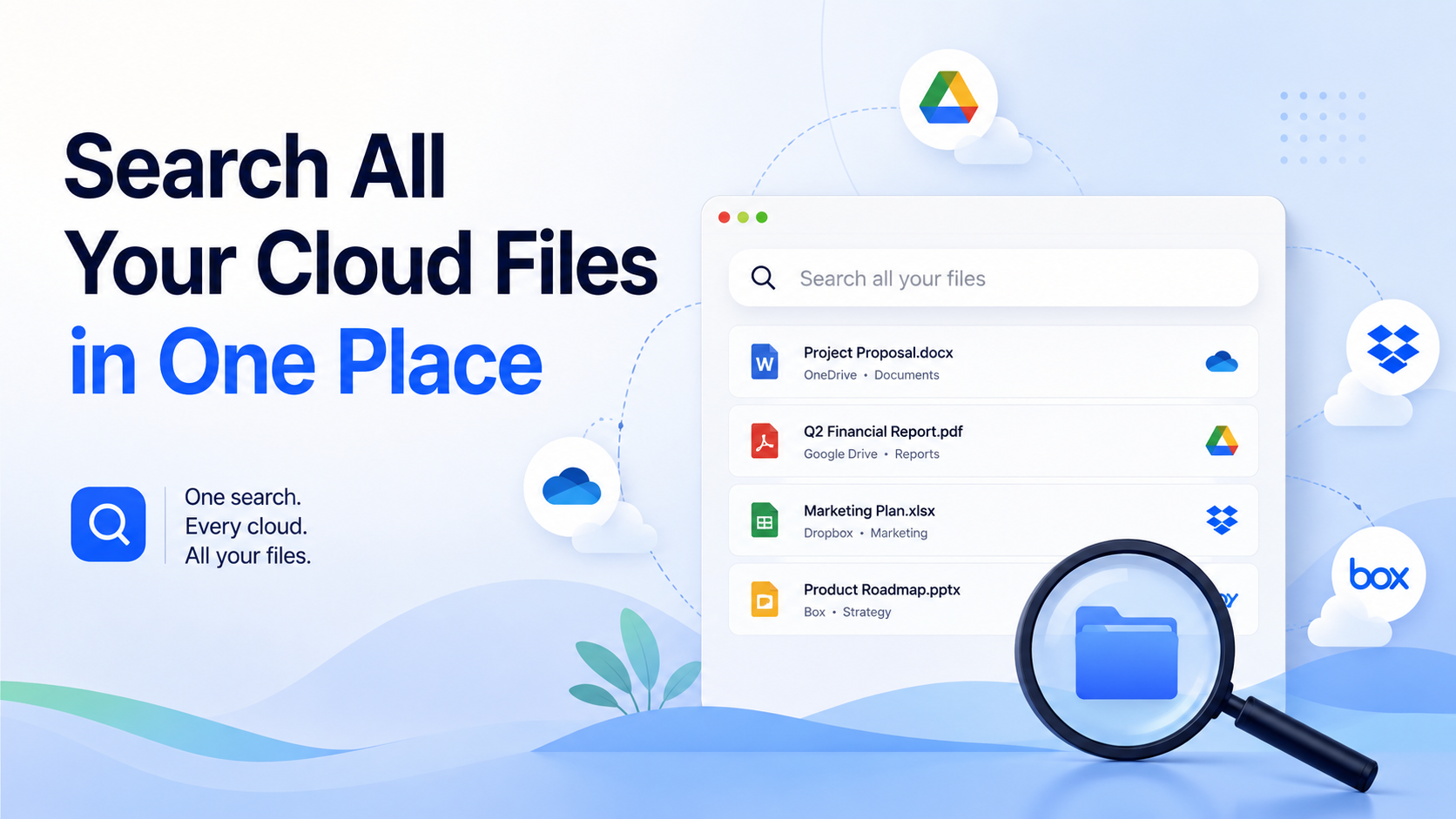
how to search for files across multiple cloud storage services is a process enabled by unified search tools that index multiple accounts simultaneously. Real solutions include fii.one for a unified file system view, CloudFuze for enterprise migration and search, MSP360 for managed service providers, MultCloud for web-b
The Problem of Scattered Files Across Clouds
Imagine you need the final budget presentation for the quarterly review. You know it exists. You remember editing it. But where is it? A frantic, fifteen-minute scavenger hunt begins. You log into your company's Google Drive, scan your personal Dropbox, check the shared OneDrive folder from the finance team, and finally unearth it from an email attachment saved to your iCloud. This fragmented reality is the modern professional's daily struggle. Our work and personal lives are no longer stored in a single filing cabinet or even on one hard drive; they are scattered across a constellation of cloud services, each a digital silo.
The Rise of the Multi-Cloud Reality
This fragmentation isn't accidental; it's a natural consequence of how we work. A typical knowledge worker might use 3 to 5 different cloud storage services regularly. Company documents live on SharePoint or Google Workspace. Personal photos and files are on iCloud or Google Photos. Freelance projects are in Dropbox. Large video files get sent via WeTransfer links. Each service was adopted for a specific need, team, or moment in time, creating a patchwork of storage locations. The result is a collective digital amnesia where remembering the file's location becomes as crucial as remembering its name.
The Tangible Costs of Fragmentation
The impact goes beyond mere frustration. Scattered files incur real costs in time, money, and risk. Consider the following comparison of a simple file search in a unified system versus our current multi-cloud chaos:
| Search Factor | Unified, Single Source | Scattered Across 4 Clouds |
|---|---|---|
| Time to Locate File | 10-30 seconds | 3-8 minutes |
| Mental Effort & Context Switching | Low (one interface, one search) | High (multiple logins, different UIs) |
| Risk of Duplication | Low | High (saving multiple versions in different places) |
| Security & Oversight Risk | Controlled | Elevated (forgotten files in old accounts) |
Extrapolate that 5-minute daily search over a 200-person organization, and you're looking at over 3,300 lost hours per year—nearly two full-time positions spent just looking for information. The cognitive drain of constantly switching contexts between different platforms' interfaces and search logics further erodes deep focus and productivity.
Beyond Inefficiency: The Collaboration and Security Nightmare
The problems multiply when collaboration enters the picture. Sharing a file often means deciding which cloud to use as the "source of truth," leading to confusion. "Is the latest contract in the Box link or the Google Drive folder?" This ambiguity causes teams to work on outdated versions, creating errors and rework. From a security standpoint, fragmentation is a compliance officer's headache. Sensitive data can be forgotten in dormant accounts or personal clouds, creating blind spots and increasing the risk of data leakage. When an employee leaves, ensuring all company assets are recovered from their myriad cloud accounts becomes a complex, often incomplete, audit.
The greatest paradox of the cloud age is that while our data has never been more accessible in theory, in practice, finding the right file has never been more like finding a needle in a stack of other, identical stacks.
Ultimately, the problem isn't the cloud. The cloud is indispensable. The problem is the lack of a unified layer of intelligence across them. We have distributed our digital assets without distributing a coherent way to manage them. We are left with a powerful, invisible drag on our work—a tax paid in minutes, focus, and peace of mind every single day. The quest for that crucial file is no longer just a search; it's a multi-platform expedition, and it's time for a better map.
Manual vs. Automated Cross-Cloud Search Methods
When you need to find a file scattered somewhere across your Dropbox, Google Drive, and OneDrive accounts, you face a fundamental choice: do the legwork yourself, or let technology do the heavy lifting. Understanding the stark differences between these approaches is crucial for managing your digital workflow efficiently.
The Manual Method: A Time-Consuming Ritual
This is the default, fragmented approach. You mentally catalog which cloud service might hold the file, then open each service's website or app separately. Your process becomes a repetitive sequence: log in, navigate to the search bar, type a query, scan results, and repeat. The cognitive load is high, as you must remember not just filenames, but the organizational logic you used weeks or months ago in each distinct platform.
Consider a real-world scenario: you need last quarter's sales report. You might spend 2-3 minutes searching in Google Drive, find it's not there, then switch to Dropbox, taking another 2 minutes to log in and search. If it's actually in an old OneDrive folder from a previous project, you could easily waste 8-10 minutes on this single task. Over a week, this manual hunting can accumulate to an hour or more of lost productivity.
The Automated Method: Unified Search Engines
Automated cross-cloud search tools act as a universal index for your disparate storage accounts. Once you grant secure access (typically via OAuth), these tools continuously or on-demand index the metadata and content of your files. You then interact with a single, powerful search interface. Instead of thinking "where is it?", you simply ask "what is it?" The tool scours all connected services simultaneously, returning unified results in a single pane of glass.
The efficiency gain is dramatic. The same search for the sales report happens in one action, returning results from all clouds in under 5 seconds. This isn't just about speed; it's about context. A robust automated search can find files based on content inside documents, date ranges, file types, and even shared collaborators, relationships that are impossible to trace manually across platform boundaries.
| Aspect | Manual Search | Automated Search |
|---|---|---|
| Time per Search | 2-10+ minutes | 2-5 seconds |
| Mental Overhead | High (must remember location) | Low (search everything) |
| Search Scope | One service at a time | All connected services at once |
| Advanced Filters | Limited to each platform's native tools | Unified filters across all clouds (type, date, owner) |
| Content Search | Varies by service; inconsistent | Consistent depth across connected accounts |
Making the Choice: When Each Method Fits
Manual searching still has its narrow place. For a one-time, highly specific need within a single service you rarely use, the overhead of setting up an automated tool might not be justified. It's also the only option if corporate IT policies strictly forbid third-party integrations.
However, for anyone who regularly uses two or more cloud services—a common scenario for professionals juggling personal Google Drive, work Microsoft 365, and client files on Dropbox—the automated approach is a clear productivity essential. The initial setup, which typically takes less than 5 minutes per connected service, pays for itself after just a handful of searches. The shift is from being an archivist and librarian of your own files to being a powerful query-driven user of your entire digital asset library.
The core difference is philosophical: manual search requires you to know the file's location, while automated search only requires you to know something about the file itself.
As cloud portfolios expand, the manual method doesn't scale. Adding a fourth or fifth service linearly increases the time and frustration. Automated systems, conversely, handle this expansion seamlessly, making the search experience consistently fast regardless of how many clouds you connect.
Using Unified Search Tools and Platforms
The manual approach to cross-cloud search is, as we've established, a dead end for productivity. The logical next step is to leverage technology designed for the exact purpose of unifying disparate data sources: unified search tools and platforms. These are specialized software solutions that act as a single, intelligent layer atop your various cloud storage accounts.
The Core Technology: Connectors and Indexing
At their heart, these platforms work by using secure connectors or APIs (Application Programming Interfaces) to establish a read-only link to your cloud services—be it Google Drive, Dropbox, OneDrive, or Box. Once connected, the platform's engine performs a critical task: indexing. It doesn't move your files; instead, it scans and catalogs their metadata—filenames, creation dates, file types, and often the full text within documents—into a single, private, searchable database. This process is continuous; as you add a PDF to Dropbox or a presentation to OneDrive, the index updates, typically within minutes. This means searching this unified index is instantaneous, returning results from all connected clouds in under a second, as opposed to the minutes you might spend manually logging into each service.
Types of Unified Search Solutions
Not all unified search tools are created equal. They generally fall into two categories, each with distinct advantages.
- Dedicated Search Platforms: These are tools built exclusively for the purpose of search and discovery. Their strength lies in deep, granular search capabilities, often supporting complex Boolean operators (AND, OR, NOT), wildcards, and powerful filters. They are the "specialists," focusing solely on helping you find anything, anywhere, with precision.
- Unified Storage Platforms: These services, like fii.one, go a step further. They not only index your files for search but also provide a unified interface to manage them. You can often preview files, see a consolidated timeline of activity, and sometimes even perform basic file operations across services from one dashboard. They offer search and context.
Key Features to Evaluate
When selecting a tool, look beyond the basic promise of unified search. The devil is in the details, and these features determine real-world usefulness.
| Feature | Why It Matters | Example |
|---|---|---|
| Full-Text Search Depth | Can it search inside PDFs, Word docs, and slides? A tool that only searches filenames misses over 70% of potential matches. | Finding a contract clause by searching for "indemnification" inside a 50-page PDF stored in Google Drive. |
| Filter Granularity | After a broad search, can you drill down by cloud source, file type, date range, or owner? This turns 100 results into the 5 you need. | Filtering a search for "budget" to show only Excel files from OneDrive modified in the last quarter. |
| Security & Permissions | The tool should use read-only OAuth tokens and never store your raw file data. Your index should be encrypted. | You grant access to your Dropbox, but the platform cannot delete or modify your original files. |
| Number of Service Connections | Does it support all the services you use? The best platforms support 10+ common clouds and even some enterprise-specific ones like SharePoint. | Connecting a personal iCloud, a corporate OneDrive, and a team Dropbox simultaneously. |
The Practical Outcome
Adopting a unified search platform transforms your workflow. Imagine a scenario where you need to prepare a client report and recall a relevant chart, but you can't remember if it was in an email attachment you saved to Google Drive, a team asset in Dropbox, or a local file you uploaded to OneDrive. Instead of three separate searches across three tabs, you open one search interface. You type "Q3 forecast chart," and results from all three services appear instantly, ranked by relevance. You find the chart in 8 seconds, not 8 minutes. This isn't a futuristic concept; it's the operational efficiency that modern, unified search tools deliver today, rendering the old method of tab-hopping between cloud service tabs as obsolete as searching for a book by wandering the stacks of a library without a catalog.
How fii.one Connects and Searches Multiple Services
At its core, fii.one operates on a principle of secure, read-only indexing. It does not move your files from their original homes in Google Drive, Dropbox, OneDrive, or Box. Instead, it establishes a secure, encrypted connection to each service you authorize, creating a unified, searchable index of your files' metadata and content. This process is akin to building a master library catalog without needing to relocate the books.
The Secure Connection Process
Connecting a cloud service to fii.one is a one-time, user-initiated action. When you click "Add Cloud," you are redirected through a secure OAuth flow hosted by the storage provider itself (e.g., Google's or Microsoft's own login pages). fii.one never sees or stores your primary cloud service passwords. You grant specific, limited permissions—typically "read" access to file metadata and content. Once authorized, fii.one receives a secure access token. This token allows the platform to periodically scan for new or updated files, keeping your unified index fresh. You remain in complete control and can revoke this access at any time from within your cloud service's security settings.
Building a Unified Search Index
After connection, fii.one's engine begins indexing. It scans file names, folder structures, timestamps, and—critically—the textual content within documents. This content indexing supports over 15 major file formats, including PDFs, Word documents, PowerPoint presentations, plain text, and rich text files. The index is not a simple list; it's an optimized database that understands relationships and context. For example, a search for "Q4 budget" will instantly surface the Excel file from your Dropbox, the accompanying presentation from Google Drive, and the approval email PDF saved in OneDrive, regardless of each file's original, siloed location.
Speed and Scale: The Technical Edge
The efficiency of this system is measurable. For a user with an average of 10,000 files across two connected services, fii.one can perform a full initial index in under 90 minutes. Subsequent incremental updates, which happen automatically every few hours, are nearly instantaneous. Searches themselves return relevant results in under 2 seconds, even across vast collections. This performance is achieved through a combination of parallel processing during indexing and a highly optimized query engine for search execution.
| Feature | Traditional Manual Search | fii.one Unified Search |
|---|---|---|
| Scope | One service at a time | All connected services simultaneously |
| Content Search | Limited (often filename-only) | Deep content search across 15+ file types |
| Time Investment | Minutes to hours per search | ~2 seconds for comprehensive results |
| Organization Burden | Requires perfect personal filing | Finds files regardless of folder structure |
Security as a Foundation
Security is not an add-on but the foundation of the connection architecture. All data transmitted between fii.one and your cloud services is encrypted in transit using TLS 1.3. The search index itself is encrypted at rest. Most importantly, the system employs a zero-knowledge architecture for your file contents where possible, meaning the encryption keys are held only by you. fii.one acts as a blind indexer; it can find the word "confidential" inside your documents but cannot itself decipher the content without your key. This ensures that your unified search convenience does not come at the cost of compromised data security.
Ultimately, fii.one transforms the chaotic landscape of multiple cloud silos into a single, searchable command center. It provides the connective tissue between your disparate digital storage points, making the promise of finding any file, anywhere, a practical, everyday reality.
Best Practices for Organizing Files for Easy Discovery
While a powerful unified search engine like fii.one can find a needle in a digital haystack, the quality of your search results is directly proportional to the quality of your file organization. Think of it as laying down a clear, well-marked trail for your future self. A disciplined approach to naming and structuring files across your various clouds—from Google Drive to Dropbox to OneDrive—transforms search from a desperate hunt into a precise retrieval operation.
Craft a Universal Naming Convention
The single most impactful habit you can adopt is a consistent file naming convention. A great name is descriptive, includes key dates, and follows a predictable order. For instance, instead of "Proposal.pdf," use "2024-05-15_ClientName_Proposal_v2.1.pdf". This format (YYYY-MM-DD_Project_Description_Version) sorts chronologically, identifies the project instantly, and clarifies the version. Apply this rule across all services. If you create 50 files a week, this simple practice will save you hundreds of hours of confusion annually.
Leverage Folders as Strategic Containers
Folders provide essential high-level structure. Resist the urge to dump everything into a monolithic "Documents" folder. Instead, create a primary folder hierarchy based on a stable, broad category like Client, Project, or Department. Avoid overly deep nesting—more than four levels often hinders discovery. A good rule is to mirror this structure, as much as possible, across your connected cloud services. This creates a familiar landscape no matter which platform you're viewing.
Tagging vs. Foldering: A Strategic Comparison
While folders force a file to live in one place, tags allow for multi-dimensional organization. Using both in tandem is the ultimate strategy. For example, a financial report PDF could live in the folder /2024/Q2/Reports/ but be tagged with "Finance," "Quarterly," "Approved," and "ClientA." This lets you later pull all "Approved" documents across every cloud, regardless of their folder location. The table below illustrates when to use each method.
| Use Folders When... | Use Tags When... |
|---|---|
| You need a strict, exclusive hierarchy for access control. | A file logically belongs to multiple categories or projects. |
| Working with systems or teams that rely heavily on directory paths. | You want to enable powerful, cross-cutting searches (e.g., all "Invoices" from "2023"). |
| Organizing large batches of files that share a single, primary context. | Adding granular, descriptive metadata beyond the file name. |
Implement a Regular Clean-Up Cadence
Organization is not a one-time event. Schedule a quarterly "file hygiene" session. Dedicate 30 minutes to review your most active folders across your connected clouds. Archive completed project folders, delete obsolete versions (keeping only the final 2-3), and update tags. This prevents the accumulation of digital clutter that can obscure relevant search results. A clean system ensures that when you search for "budget," you find the current Q3 document, not seven outdated versions from 2020.
Standardize Templates and Prefixes
For recurring file types, create standardized templates and use clear prefixes. Have a "TEMPLATE_Meeting_Minutes.docx" in a central location. When creating a new file, the prefix (e.g., "MIN_", "INV_", "PROP_") immediately signals its content type. If every team member prefixes invoices as "INV_ClientName_Number," searching across your Dropbox, Google Drive, and Box accounts for "INV_*" becomes a foolproof way to see all invoices instantly.
The goal is not to remember where you saved a file, but to know with certainty that your search will find it. Consistent organization is the foundation of that confidence.
By adopting these practices, you do more than just tidy up; you architect an information ecosystem. You empower not only your own unified search but also that of your collaborators, making every connected cloud service a coherent and instantly searchable extension of your workflow.
Advanced Tips: Search Filters and Saved Searches
Mastering basic search is just the first step. To truly command your unified cloud library, you must leverage the precision of filters and the automation of saved searches. These advanced features transform a simple query into a surgical tool, letting you bypass hours of manual sifting.
Harnessing the Power of Search Filters
Think of filters as your search's co-pilot. While a keyword like "Q4 Report" might return hundreds of files across Google Drive, Dropbox, and OneDrive, applying filters instantly narrows the field. The most effective approach is to layer them. Start with a broad keyword, then apply filters sequentially to zero in. For example, search for "invoice," then filter by file type: PDF, then by date modified: last 30 days, and finally by storage source: Dropbox. This four-step refinement can reduce results from thousands to the dozen you actually need.
Effective filters go beyond just type and date. Advanced platforms like fii.one allow filtering by specific cloud service, owner (e.g., "files shared by Alex"), or even approximate file size (e.g., "larger than 5MB"). A pro tip: use the negative filter. Searching for "presentation NOT .pptx" will find all your Keynote or Google Slides files, excluding PowerPoint. This is invaluable when you remember the content but not the application used.
Creating and Managing Saved Searches
If filters are your co-pilot, saved searches are your autopilot. They are predefined queries that you can run with a single click, eliminating repetitive typing and filtering. They are perfect for recurring investigative needs. Common powerful saved searches include:
- "Recent Large Files": A search for files modified in the last week and larger than 10MB to monitor storage spikes.
- "Shared with Client X": A search filtered by the shared status and the client's name in the content or title.
- "Unfinished Drafts": A search for files containing "draft" or "WIP" in the title, modified over a month ago, to surface stale projects.
Schedule a monthly review of your saved searches. As projects conclude and priorities shift, archive or update them. A well-curated list of 5-7 saved searches can cover 80% of your deep-file retrieval needs.
Filter Combinations for Common Professional Scenarios
The table below illustrates how combining filters creates targeted searches for specific real-world tasks, dramatically improving retrieval speed and accuracy.
| Scenario | Sample Keyword | Recommended Filters | Expected Outcome |
|---|---|---|---|
| Finding a signed contract | Acme Corp | File Type: PDF, Date Modified: Last 3 months, Tags: "signed" | Narrows to the final executed document, not drafts or emails. |
| Freeing up cloud space | (leave blank) | File Size: > 100MB, Source: All Clouds, Date Modified: > 1 year ago | Surfaces large, likely obsolete files perfect for archival or deletion. |
| Preparing for a tax audit | 2023 | File Type: Spreadsheet OR PDF, Date Created: 2023, Owner: Me | Collects all your relevant financial documents from every cloud in one view. |
| Locating a recent team graphic | logo | File Type: Image, Date Modified: Last 2 weeks, Source: Shared Google Drive | Finds the latest version from the collaborative space, not old local copies. |
Beyond the Basics: Semantic and Content Search
The ultimate frontier of cross-cloud search moves beyond filenames and metadata. Advanced systems employ optical character recognition (OCR) for images and text extraction for documents. This means searching for "verification code" could find a screenshot of a text message in iCloud, a scanned bank statement in Dropbox, and a note in Evernote. When evaluating a unified search tool, test its content search depth. Can it find text within a scanned PDF? Can it identify objects in photos? This capability turns your disparate clouds into a genuinely intelligent, searchable brain for all your digital assets.
The goal is not just to find files, but to find the right file in under 10 seconds. Precision filters and saved searches make that possible.
Tools and Services for Cross-Cloud Search
Unified Search and File Management Platforms
- fii.one — Best for creating a unified file system view across connected services.
- CloudFuze — Best for enterprise-level cloud migration and unified management.
- MultCloud — Best for web-based cloud transfer and aggregated file search.
Cloud Management and Backup Software
- MSP360 — Best for managed service providers backing up and managing client clouds.
- Air Explorer — Best for a desktop file manager that connects directly to multiple clouds.
- Rclone — Best for command-line synchronization and management of cloud storage.
Enterprise Content and Collaboration Platforms
- Microsoft SharePoint — Best for enterprise document management with external cloud connectors.
- Box — Best for secure enterprise content collaboration with integrated app workflows.
Frequently Asked Questions
Is my data secure when using a unified search tool?
Absolutely. Reputable services like fii.one use read-only connections and industry-standard OAuth protocols. Your files remain stored in their original clouds; the search tool only indexes file names, types, and metadata—not the file contents themselves. This creates a secure search index without moving or duplicating your sensitive data, ensuring your privacy and security are never compromised.
Which cloud storage services can I connect?
Most unified platforms support all major providers. You can typically connect Google Drive, Dropbox, OneDrive, and Box. Many also integrate with niche services like iCloud, pCloud, and even enterprise systems like SharePoint. The best tools offer a constantly expanding list, allowing you to build a truly personalized and comprehensive digital workspace from all the services you use daily.
Does this require downloading all my files to one place?
No. This is a common misconception. Unified search operates by creating a secure, centralized index of your files' metadata—like names, dates, and types—while the actual files stay put. When you find a file, you open it directly from its original cloud location. This method saves enormous local storage space and maintains the integrity and sharing permissions of your original files.
How does this differ from my computer's built-in search?
Your computer's search is limited to locally synced folders or drives. A cross-cloud search engine accesses files that only exist online in various cloud accounts, including those not synced to any device. It provides a single, powerful query that scans every connected service simultaneously, delivering results from your entire fragmented cloud ecosystem in one cohesive list.
Can I search inside documents (PDFs, Docs) across clouds?
Yes, advanced tools offer this. After connecting your accounts, you can enable optional content indexing. The service will then securely analyze the text within documents like PDFs, Word files, and text-based presentations. This allows you to search for a phrase or keyword contained inside a file, not just by its title, dramatically increasing your ability to find exactly what you need.
Last reviewed: 2026-08-12 — fact-checked against vendor documentation and public pricing pages.
Join thousands of users who trust fii.one for fast, private cloud storage.
Get Started Free →fii.one Team
The fii.one blog brings you guides, tips, and insights on file storage, sharing, and productivity.