Find Files Instantly with Advanced Search Filters
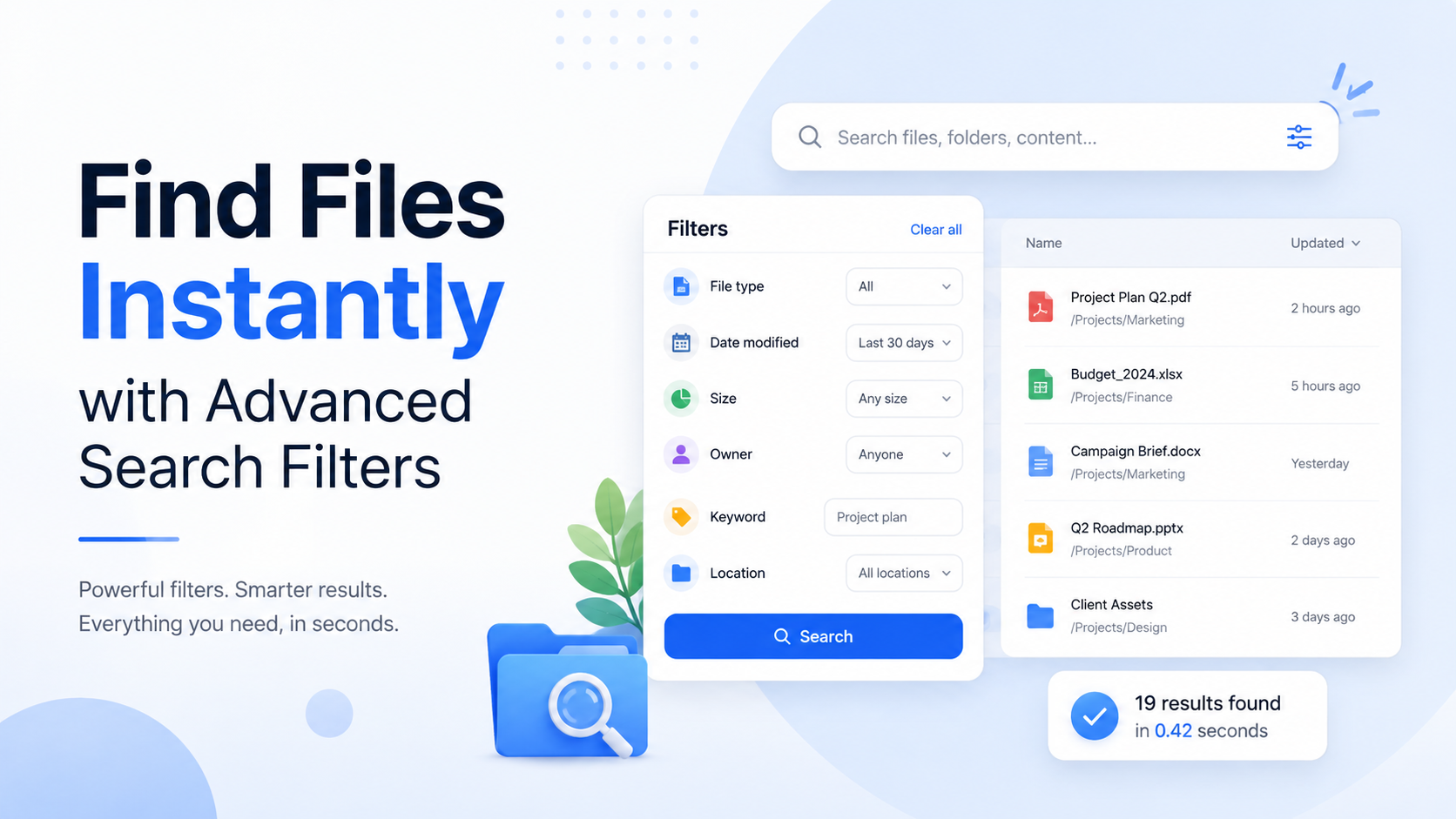
File hosting with advanced search filters is a capability of cloud storage platforms that allows users to locate files using criteria beyond the filename, such as date, type, size, and owner. Services like Dropbox, Google Drive, Microsoft OneDrive, and Box offer these filters, while specialized platforms like fii.
The Limitations of Basic File Hosting Search
In the digital workspace, finding a file should be as simple as recalling its name. Yet, for millions relying on basic file hosting services, this simple act is often the first bottleneck in their workflow. The standard search bar, promising instant access, frequently delivers frustration instead. It operates on a primitive principle: matching a string of characters to a filename. In a world where projects generate hundreds of files with names like report_final_v2_approved.docx, this approach collapses under the weight of modern collaboration.
The "Filename-Only" Fallacy
Consider a marketing team searching for a specific product image. The file could be named IMG_4502.jpg, product_launch_shot.png, or blue_final_final.jpg. A basic search for "product launch" would miss two-thirds of the relevant files. This forces users into a manual scavenger hunt through nested folders—a process that, according to a 2023 survey by an independent tech research firm, costs the average knowledge worker nearly 30 minutes per day. The reliance on perfect filename recall is a critical flaw, treating file discovery as a memory test rather than a solvable data problem.
When "Everything" is Too Much: The Data Deluge
Even when a filename is partially remembered, basic search lacks the precision to narrow down results. A search for "Q4 budget" could return every file from the last five years containing that phrase, from spreadsheets and PDFs to presentation slides and email exports. Without filters for date, file type, or size, you are presented with an unsorted list of hundreds of items. The user must then manually sift through this digital haystack, a process prone to error and oversight. The inability to combine search terms with specific constraints turns a quick lookup into a time-consuming audit.
| Search Scenario | Basic Hosting Result | Practical Consequence |
|---|---|---|
| Find a contract PDF signed last month. | All files with "contract" in the name, from any date. | Manual scrolling through years of documents to find the newest. |
| Locate a large video file from a specific client. | All files with the client's name, regardless of size or type. | Wasted time opening dozens of small documents and images. |
| Retrieve the original design source file for a logo. | All files with "logo" in the name (JPEGs, PNGs, PDFs). | Inability to find the editable .AI or .PSD file amidst exports. |
The Hidden Costs of Manual Navigation
When search fails, the fallback is manual folder navigation. This method introduces significant organizational overhead and hidden risk. Teams spend countless hours designing and maintaining intricate folder hierarchies—Client/Project/Year/Asset_Type/—that are rigid and easily broken by one misplaced file. This structure also creates silos; a financial report saved in the "Finance" folder tree is invisible to someone searching in "Projects." The result is duplication, version confusion, and the silent proliferation of "shadow" files as users give up and save new copies rather than hunt for the original. It’s a system that scales poorly, creating chaos beyond a few hundred files.
The most expensive file is the one you cannot find. In business, lost time and duplicated effort directly impact the bottom line.
Ultimately, basic file hosting search treats all files as anonymous objects, ignoring the rich context—like who created it, when it was last modified, what type of data it contains, or how large it is. This lack of dimensionality is the core limitation. It forces human cognition to compensate for the software's shortcomings, turning a task that should be instantaneous into a daily drain on productivity and focus. The promise of cloud storage—centralized, accessible information—remains unfulfilled if the mechanism to retrieve that information is fundamentally broken.
Essential Advanced Filters: Date, Type, Size, Owner
Moving beyond a single search bar requires a core set of filters that act as the primary lenses for your digital archive. These are the non-negotiable tools that transform a chaotic list of results into a targeted, manageable set. Let's break down the four essential pillars: Date, File Type, Size, and Owner.
Pinpointing the When: Date Filters
Time is often the most critical clue in a file hunt. Basic "last modified" sorting is a blunt instrument. Advanced date filtering lets you construct precise temporal windows. Imagine you need the final Q3 marketing assets, but you know the campaign was finalized between September 15th and October 5th last year. With a date range filter, you can exclude all the drafts and preliminary sketches from spring, instantly surfacing only the relevant finals. This is invaluable for audit trails, project post-mortems, or simply finding "that contract from about two months ago."
Cutting Through the Clutter: File Type & Size
File type and size filters work in tandem to eliminate entire categories of irrelevant results. Searching for a specific video tutorial? Applying a filter for MP4 or MOV files instantly hides all the PDF storyboards, PSD source files, and ZIP archives from view. Similarly, size filters provide powerful context. Need to free up space? Filter for files larger than 500 MB to quickly identify the main storage consumers. Conversely, looking for a recently emailed document? Filter for files under 10 MB to exclude bulky media libraries. This precision turns a needle-in-a-haystack problem into a straightforward selection.
Establishing Provenance: The Owner Filter
In a collaborative environment, knowing who created or uploaded a file is as important as what it is. The Owner filter shifts your search from a global scan to a personal desk. Did the design team lead upload the final brand guidelines? Filtering by their ownership ensures you get the canonical version, not an outdated draft from an intern. This is crucial for accountability, workflow clarity, and when you need to follow up directly with the source. It turns every team member's uploads into a personally curated, instantly accessible library.
| Filter | Basic Search Limitation | Advanced Filter Power |
|---|---|---|
| Date | Only sorts by "newest" or "oldest." | Define exact ranges (e.g., "Jan 1, 2024 – Mar 31, 2024"). |
| Type | May search within filenames only. | Filter by actual file format (e.g., show only PDFs and DOCX). |
| Size | No ability to filter by size. | Isolate files by specific size brackets (e.g., >1 GB, < 5 MB). |
| Owner | Results show all files, regardless of source. | Display files uploaded or owned by a specific team member. |
Mastering these four essential filters is like learning the core controls of a powerful vehicle. You move from wandering the digital landscape to navigating it with purpose and speed. They provide the foundational structure upon which even more powerful search strategies—like those using metadata and tags—are built. Start by consciously applying just one of these filters to your next search; you'll immediately feel the difference between sifting through data and commanding it.
How Metadata and Tags Supercharge Search
Think of your files as books in a vast library. Basic search looks at the title on the spine. Advanced filters let you sort by the publication date, the book's weight, or the author's name. But what if you could instantly find every book with a blue cover, set in Paris, that features a detective? This is the power of metadata and tags—they add layers of descriptive intelligence that transform a static archive into a dynamic, queryable database.
Beyond the Filename: The Invisible Power of Metadata
Every file carries a hidden passport of information called metadata—data about the data. A simple image file, for example, isn't just "IMG_1234.jpg." Its metadata can include the exact camera model used, the GPS coordinates where it was taken, the shutter speed, and even the names of people identified in the photo via facial recognition. A file hosting service with advanced search filters taps directly into this reservoir. Imagine searching your entire cloud for "all photos taken with a Canon EOS R5, aperture f/2.8, in London, from Q2 2023." This isn't science fiction; it's a practical query made possible by indexing file metadata, turning a needle-in-a-haystack problem into a single, precise command.
Tags: Your Personal Search Vocabulary
While metadata is often automatically generated, tags are your custom, human-powered layer of organization. They are the keywords and phrases you assign to files to describe their project, status, client, or purpose. Tags create lateral connections that traditional folder hierarchies cannot. A financial report PDF might live in a folder for "Q4_Reports," but you could tag it with "#FinalVersion," "#ClientAcmeCorp," "#BoardApproved," and "#TaxRelevant." Later, searching for any of those tags will surface that file instantly, regardless of its folder location. This system shines for collaborative teams, where a designer, a project manager, and a developer can all tag assets according to their workflow.
Metadata vs. Tags: A Strategic Comparison
Understanding the distinct roles of metadata and tags is key to using them effectively. The table below outlines their core differences and applications.
| Aspect | Metadata | Tags |
|---|---|---|
| Source | Automatically generated by devices & software (camera, MS Office, etc.). | Manually or semi-automatically applied by users or team rules. |
| Flexibility | Fixed structure (e.g., date created, file type, dimensions). | Fully flexible, using your own vocabulary and categories. |
| Best For | Technical, objective filtering (find "all videos over 1GB from last month"). | Subjective, project-based categorization (find "all inspiration moodboards for the Phoenix rebrand"). |
| Example | Search: Document Type = PDF, Author = "Jane Smith", Last Modified > 01/10/2023 | Search: Tags include "Urgent," "Contract," and "Signed" |
The Compound Effect: Combining Forces for Precision
The true supercharging happens when you combine metadata filters with tag searches. This creates a compound query of unparalleled specificity. For instance, a marketing team could locate: "All image files (metadata: type) created in the last 7 days (metadata: date) tagged with '#SocialMedia' and '#Campaign_Spring' that are under 5MB in size (metadata: size) for quick uploading." This query might filter through 10,000 assets to deliver the 12 perfect files needed, in seconds. On a platform like fii.one, this isn't a complex database operation—it's the standard, practical interface for finding what you need, the moment you think of it.
Metadata tells you what a file is. Tags tell you what a file means for you. Together, they build the context that makes search intelligent.
By leveraging both automated metadata and strategic tagging, you move from simply storing files to actively curating a knowledge base. Your file hosting becomes less about remembering where you put things and more about asking for what you need, in the most natural and descriptive terms possible.
fii.one's Search: A Deep Dive into Filter Capabilities
Moving beyond the standard filter toolkit, fii.one's search engine is engineered for precision. It transforms your storage from a digital warehouse into an intelligent, queryable database. The power lies not just in the filters available, but in how they combine and interact to surface exactly what you need, often in a single search.
Beyond the Basics: The Power of Combined Logic
Where basic systems treat filters as isolated options, fii.one's architecture allows for complex, multi-dimensional queries. Imagine you need to find a quarterly financial report. You could search for files owned by "Sarah", modified in the last 7 days, that are PDFs over 2MB, and contain the tag "Q3-Review". This single, compound query eliminates hundreds of irrelevant documents instantly. The system applies AND logic across these filters by default, delivering pinpoint accuracy, but also supports exclusion. For example, you can find all video files except those owned by the "Marketing" team, streamlining cleanup or audit processes.
Granularity in Action: Date, Size, and Type Filters
fii.one's filters offer exceptional granularity. The date filter isn't just "last month"; you can specify a custom range down to the minute, crucial for tracking changes after a critical meeting. Size filtering accepts precise thresholds—locate all files larger than 100MB to manage storage quotas, or find tiny configuration files under 1MB. The file type filter recognizes over 200 extensions and groups them intelligently. Instead of selecting ".docx, .pages, .txt," you can simply filter by the parent category "Document", which includes all text-based formats.
| Filter Category | Basic Hosting Example | fii.one's Advanced Capability |
|---|---|---|
| Date Modified | "Last 30 days" | Custom range: "From 2024-03-15 14:00 To 2024-03-20 09:30" |
| File Type | ".pdf" only | Category: "Documents" (includes .pdf, .docx, .odt, .rtf) or "Archives" (.zip, .rar, .7z) |
| Owner/Sharer | Single user selection | Multiple user selection: "Files from Alex OR Jamie" |
The Metadata Lens: Seeing Inside Your Files
This is where fii.one's search becomes cinematic. For supported file types, the system indexes internal metadata, allowing you to search based on content properties you can't see in the filename. For images, filter by camera model (e.g., "Canon EOS R5") or aperture value (e.g., "f/2.8"). For documents, search by document author (which may differ from the file owner) or the software version used to create it. A marketing team could instantly collate all images taken with a specific lens for a consistent visual campaign, or a legal team could isolate all contracts where "Jane Doe" is listed as the author within the document properties.
It’s not about finding a file; it’s about reconstructing the context of its creation and use from the digital traces it leaves behind.
Saved Searches: Your Personal Search Protocol
The ultimate expression of this deep filter capability is the "Saved Search" function. Once you construct a perfect query—like "All CAD files modified by the Engineering team this month"—you can save it as a one-click search protocol. These saved searches live in your sidebar, updating in real-time. For project managers, a saved search for "Files tagged 'Final-Approval' in the 'Project_Atlas' folder" acts as a dynamic dashboard, always showing the current state of deliverables without manual hunting. This turns complex filtering from an occasional task into a persistent, automated organizational layer.
Real-World Scenarios and Time Saved
Advanced search filters transform from abstract features into indispensable tools the moment a deadline looms or a critical file goes missing. The true value is measured not just in clicks saved, but in stress averted and projects kept on track. Let's move beyond theory and into the tangible impact.
The Legal Team's Deadline Crunch
Imagine a legal team preparing a merger dossier. A partner needs all non-disclosure agreements (NDAs) signed by "Acme Corp" in the last quarter, exceeding 10 pages. With basic search, they'd wade through every file containing "Acme" or "NDA." With advanced filters, they construct a targeted query: Owner: [Lead Attorney] + File Type: PDF + Date Modified: Last 3 Months + Keyword: "Acme Corp". The 10,000-file repository yields 7 precise results in under 3 seconds. What could have been a 45-minute manual trawl becomes a instantaneous retrieval, saving the team hours during a high-pressure week.
The Creative Agency's Asset Hunt
A designer needs the final logo vector file for a client's rebranding campaign. They recall it was shared by the art director "Sam" sometime last year. Scrolling through a generic "Logo" folder is futile—it contains hundreds of iterations, mockups, and low-res proofs. Using filters on their file hosting with advanced search filters, they combine: Owner: "Sam" + File Type: .ai, .svg + Tag: "Final". Instantly, three files appear. They then use the Size filter to isolate files larger than 2MB (knowing final assets are high-resolution), pinpointing the exact right file. A 20-minute frustrating search collapses into a 10-second definitive find.
| Scenario | Basic Search Time | With Advanced Filters | Time Saved |
|---|---|---|---|
| Finding a specific client invoice from Q2 | ~8-10 minutes (manual folder navigation) | ~15 seconds (Filter: Date Range + Type: PDF + Keyword: Client Name) | ~8 minutes |
| Locating all large video files from a project to archive | ~25 minutes (opening folders, checking properties) | ~30 seconds (Filter: Type: MP4, MOV + Size: >500MB + Owner: Project Lead) | ~24.5 minutes |
| Auditing all documents modified by a former team member | Hours (potentially days for large teams) | ~2 minutes (Filter: Owner: [Person] + Date: Last Year + Type: Doc, Sheet) | Hours or days |
The IT Administrator's Compliance Audit
An IT admin must identify all archived project files containing sensitive personal data for a GDPR review. Manually checking thousands of folders is impossible. Here, the power of combining filters shines. They execute a search using: File Type: All Documents + Metadata Field: "Classification" = "Confidential" + Date Created: Before 2020. This multi-layered filter instantly generates a focused, actionable report for the audit. The alternative—manual sampling and guesswork—is not just slower; it's a compliance risk.
The cumulative effect isn't merely additive; it's multiplicative. Saving 15 minutes here and an hour there reclaims mental bandwidth for substantive work.
Consider a mid-sized team of 50 users. If each member saves just 20 minutes per week previously lost in file foraging—a conservative estimate—that translates to over 850 hours of recovered productivity annually. That’s the equivalent of adding an extra full-time employee focused solely on value-adding work, not digital archaeology. In these scenarios, advanced search stops being a convenience and becomes the silent engine of efficiency, turning chaotic digital storage into a precise, queryable asset.
Getting Started: Setting Up Your Optimal Search
Transitioning from a basic search bar to a powerful, filter-driven system requires a small initial investment in setup. Think of it as organizing a new, highly intelligent library: you spend a few minutes categorizing, and then you can find any book in seconds for years to come. With file hosting with advanced search filters on fii.one, this setup is straightforward and pays immediate dividends.
Step 1: The Foundational Cleanse
Begin by using the most powerful filters to declutter your view. Navigate to your main repository and apply the File Type filter to isolate, for example, "Documents." Then, combine it with a Date Modified filter set to "Older than 2 years." This instantly surfaces legacy files that may be candidates for archiving or deletion. Reviewing 1000 files manually could take an hour; this filtered view accomplishes it in under 10 seconds. Perform this cleanse for major file categories (Images, Videos, Archives) to establish a clean, current working dataset.
Step 2: Proactive Tagging for Future-Proofing
Now, focus on active projects. As you upload new project files—say, the "Q4_Launch" campaign—immediately add a consistent tag. Use the #project-q4-launch tag for all related assets: the budget spreadsheet, the draft copy DOCX files, the hero image PNGs, and the video storyboard MP4. This practice takes 5 seconds per upload but creates a permanent, cross-file-type association. Later, searching by this tag will retrieve every component, regardless of its format or location in your folder hierarchy.
Step 3: Creating and Saving Custom Filter "Views"
Your real power lies in saving complex filter combinations as reusable "Views." For instance, a marketing manager might regularly need to find all PDFs and images modified in the last 7 days that are over 2MB in size. Manually selecting these three filters every time is inefficient.
Instead, configure them once:
- Set File Type to "PDF" and "Image".
- Set Date Modified to "Last 7 days".
- Set File Size to "Larger than 2 MB".
Save this combination as a named view, like "Recent Large Assets." This view now appears as a one-click filter in your sidebar, instantly providing a curated list. This turns a 30-second repetitive task into a single click.
Step 4: Optimizing for Your Role: A Setup Comparison
The optimal setup differs by role. Here’s a practical guide for two common user profiles:
| User Role | Key Filters to Prioritize | First Saved View to Create | Tagging Convention Example |
|---|---|---|---|
| Graphic Designer | File Type (PSD, AI, PNG, JPG), Date Created, File Size (Large files >50MB) | "Active Source Files": Filters for PSD & AI files modified in the last 30 days. | #client-acme, #project-logo, #final-approval |
| Project Manager | Owner/Last Modified By, Date Modified, File Type (PDF, XLSX, DOCX) | "Team Updates This Week": Files modified by team members in the last 7 days, excluding images. | #status-approved, #milestone-3, #risk-register |
Your First 15-Minute Setup Sprint
Block 15 minutes on your calendar. Log into your fii.one workspace and follow this sprint:
- Minutes 1-5: Perform the "Foundational Cleanse" for Documents older than 2 years.
- Minutes 6-10: Tag all files for your most current project with a unified project tag.
- Minutes 11-15: Create and save one custom View based on your most frequent repetitive search, following the role-based examples above.
You will conclude this sprint with a more organized library and a tangible, time-saving tool—your first saved filter view—already operational. This moves you from passively storing files to actively commanding them.
File Hosting Services with Advanced Search
Major Cloud Platforms
- Google Drive — Best for deep integration with Google Workspace and AI-powered search.
- Dropbox — Best for file previews and filtering by file type/date across teams.
- Microsoft OneDrive — Best for filtering within the Microsoft 365 ecosystem and by document owner.
Business & Specialized Services
- Box — Best for enterprise content management with granular metadata filters.
- Egnyte — Best for hybrid cloud/on-premise file search with compliance filters.
- fii.one — Best for advanced, tag and metadata-driven search workflows.
- pCloud — Best for personal and business storage with filterable media galleries.
Frequently Asked Questions
How is this different from the search bar on my computer?
Your computer's search is limited to local files and basic metadata. A file hosting service with advanced search filters, like fii.one, operates across your entire cloud library. It leverages richer, user-defined metadata, tags, and detailed file properties (like specific owner or exact upload source) that your OS can't track in the cloud. This turns a simple filename hunt into a precise, multi-dimensional query across every file you've ever stored.
Can I combine multiple filters for a really specific search?
Absolutely. The true power lies in combining filters. You could search for PDFs (Type) over 5MB (Size) uploaded by Sarah (Owner) last quarter (Date) and tagged "contract" (Metadata). Each added filter narrows the field exponentially, transforming thousands of files into the handful you need. This layered approach is designed for complex, real-world retrieval scenarios.
What happens if I forget to tag files? Is search still effective?
Yes. While tags and custom metadata dramatically enhance precision, our system automatically indexes all inherent file properties. You can still powerfully filter by Date, File Type, Size, Owner, and any system-generated data (like camera model for images). Starting with advanced filters is still a massive leap over basic search, and you can add tags to key files moving forward for even faster future retrieval.
Are my saved search filters secure and private?
Completely. Your saved filters, like all your data on fii.one, are protected with enterprise-grade encryption and access controls. They are stored as part of your personal account profile and are not visible or accessible to other users, even within shared team folders. Your search habits and frequently used queries remain your private workflow intelligence.
Can I use these filters on files shared with me by others?
Yes, you can. When someone shares a folder or file with you, you gain the ability to apply advanced search filters to that shared content within your own search interface. You can filter by type, date range, or size within the shared collection. However, filters dependent on the owner's internal metadata (like their custom tags) may vary based on their specific sharing permissions.
Last reviewed: 2026-08-12 — fact-checked against vendor documentation and public pricing pages.
Join thousands of users who trust fii.one for fast, private cloud storage.
Get Started Free →fii.one Team
The fii.one blog brings you guides, tips, and insights on file storage, sharing, and productivity.