What Happens When You Cancel Microsoft 365? Files, OneDrive & Checklist
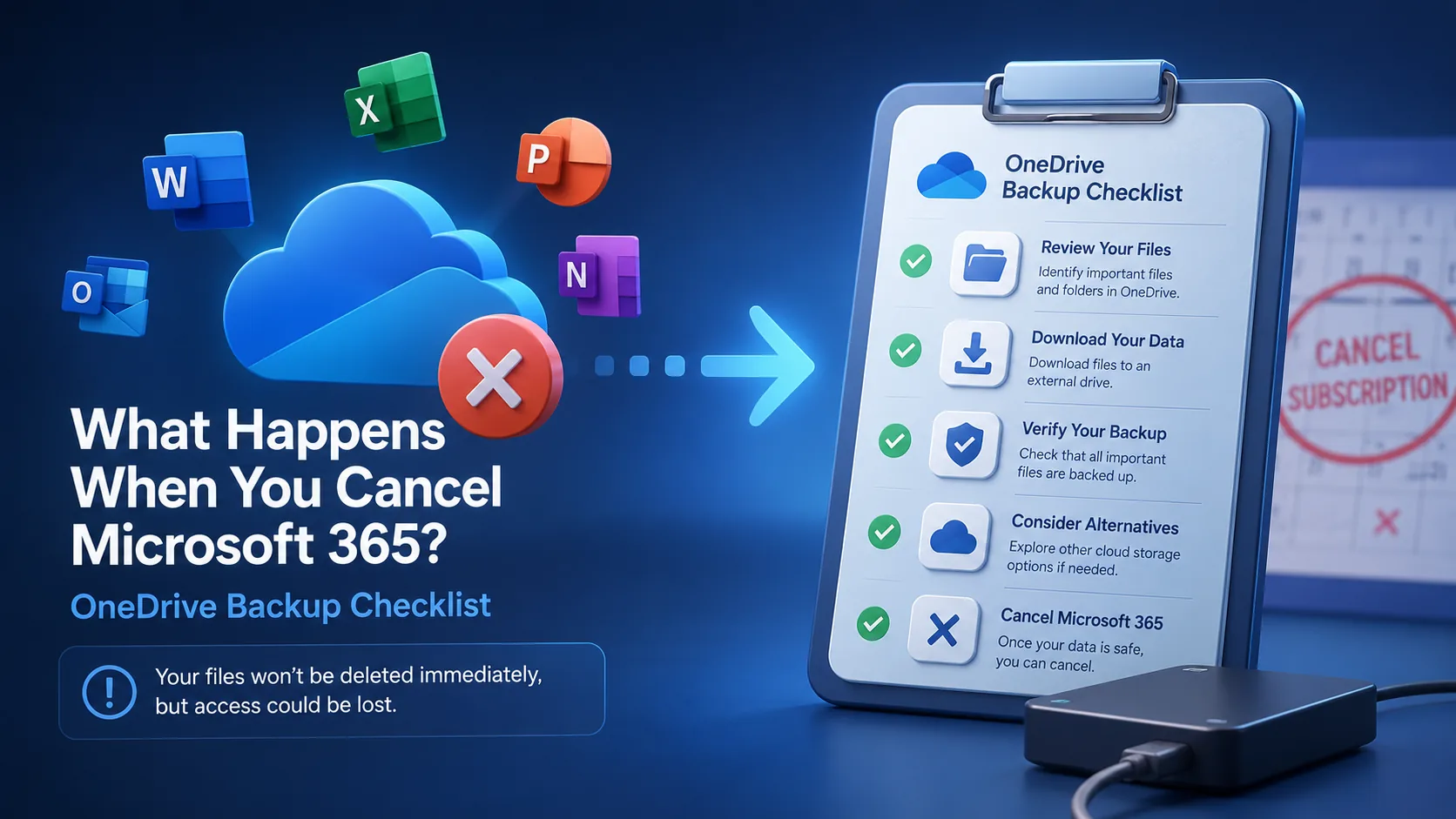
What Happens When You Cancel Microsoft 365? Files, OneDrive & Checklist
Cancel Microsoft 365 safely: what happens to Office apps, OneDrive storage, shared links, email and files, plus a practical backup and migration checklist.
Quick answer
When you cancel Microsoft 365, Office apps may lose premium editing features, OneDrive storage allowance can drop, and over-quota accounts can lose sync/share flexibility. Files are not instantly deleted in normal consumer workflows, but you should back up before canceling.
Editorial review rating: 4.3/5
Editorial rating based on cancellation clarity, file-risk coverage, backup completeness, migration practicality and user-safety checks. Not an aggregate user score.
User reviews: Have hands-on experience? Sign in or create an account to share feedback when community reviews open. We do not fabricate user ratings.
Before you cancel
Check current OneDrive usage, download critical folders, export Outlook data if needed, move shared project files, note expiring links and verify another editor can open Office documents.
OneDrive risk
The common trap is storage overage. If your account falls back to a smaller free quota, uploads, sync, email attachments or sharing can become restricted until you delete files or buy storage.
Safer migration
Move archives to an external drive or another cloud. For private links, previews and searchable uploads, test fii.one before cancellation so recipients still have access.
Cancellation checklist
Inventory files, back up originals, migrate shared folders, replace recurring workflows, confirm recovery access, cancel, then monitor OneDrive/email warnings for the next billing cycle.
FAQ
Will Microsoft delete my files immediately?
Usually no, but access and storage behavior can change. Policies vary by plan and region, so back up first and read current Microsoft notices.
Can I still open Word and Excel files?
You can often open documents, but premium desktop editing features may require an active subscription.
What happens if OneDrive is over quota?
Sync, uploads and sharing can be restricted until storage is reduced or expanded.
What should I use instead?
Use local backup plus a cloud workspace. fii.one is useful for private uploads, searchable files and share links.
Next step
If your goal is secure private file sharing rather than public link hunting, explore fii.one features or create a free account.
Detailed guide and original analysis
What Happens to Your OneDrive Files When You Cancel Microsoft 365?
Cancel Microsoft 365 and your OneDrive files do not disappear immediately — but the clock starts ticking. Here is exactly what happens to your files, your storage, and your access, and what you need to do before you cancel.
OneDrive reverts to 5GB free tier after Microsoft 365 cancellation
Microsoft support can restore your account within 90 days of closure
What you are left with on OneDrive after cancellation
Quick answer: what happens when you cancel Microsoft 365
When you cancel Microsoft 365, your subscription apps keep working until the end of the paid period, then Office desktop apps switch to read-only and your OneDrive storage drops from 1 TB back to the free 5 GB. If your files exceed 5 GB, OneDrive freezes to read-only and, after a warning window, starts deleting files. You get roughly a 90-day window to move data out before permanent loss.
What actually happens depends on which part you care about:
- Office apps — Word, Excel, PowerPoint keep opening files but go read-only; you cannot edit or create new documents without a licence.
- OneDrive storage — quota reverts to 5 GB; anything above the cap is locked read-only, then queued for deletion.
- Your files — nothing is deleted immediately; the danger is the 90-day window closing before you migrate.
- Migration targets — export to a local drive or a zero-knowledge cloud (fii.one, Proton Drive, Tresorit) instead of leaving files stranded in a shrinking OneDrive.
What Microsoft actually does when you cancel
Microsoft's published policy for Microsoft 365 cancellation is clear in outline but requires careful reading. When you cancel or let a Microsoft 365 subscription lapse:
- Your account transitions to the free OneDrive tier (5GB storage)
- Files exceeding 5GB become read-only — you can view and download but not upload new files
- After 90 days of inactivity, your OneDrive account may be deleted
- Microsoft support can restore a closed account within 30 days of deletion
- After 30 days post-deletion, files are unrecoverable
⚠️ Critical: If your Microsoft 365 plan includes 1TB or more of OneDrive storage, cancelling means your storage immediately drops to 5GB. If you have more than 5GB of files — which is easy to accumulate with years of use — you enter a grace period where you can view and download but cannot add new files until you reduce usage below 5GB.
The read-only trap
The most common unexpected outcome for cancelling users is the read-only state. You think you still have access to your OneDrive. You can browse your files. You can download them. But you cannot upload anything new because you are over the 5GB free limit.
This state can persist indefinitely if you do not reduce your storage below 5GB. Many users discover they have 50GB, 100GB, or more stored in OneDrive accumulated over years of Microsoft 365 use — far more than the free tier allows.
Before you cancel: what you must do
Step 1: Download everything you need
Before cancellation, download all files you want to keep. Use the OneDrive desktop app to sync everything locally, or download via the web interface. Do not rely on the cloud — your access becomes restricted after cancellation.
Step 2: Audit your actual storage usage
Check how much storage you are actually using. Open OneDrive settings → Account → Manage storage. You may be surprised by how much storage is consumed by old files, email attachments stored in OneDrive, and Teams recordings.
Step 3: Decide on a destination
If you want to keep your files in the cloud, migrate to a new provider before cancelling. fii.one offers unlimited storage with zero-knowledge encryption at $4.99/month — no storage ceiling, no tiered limits based on subscription status.
Step 4: Transfer before you cancel
Do not cancel first and plan to migrate after. Your ability to upload new files is restricted as soon as your subscription ends. Migrate first, then cancel.
What happens to shared files and shared links
When you cancel Microsoft 365:
- Any OneDrive sharing links you created will stop working if your account is deleted
- Shared folders where others have edit access: they lose access when your account closes
- Shared Links (view-only): may become inaccessible depending on how Microsoft handles the account
- SharePoint sites connected to your Microsoft 365 account are also affected
This is a commonly overlooked consequence. If you use OneDrive to share client files or collaborate with colleagues, cancelling means those shared resources become inaccessible. Migrate and notify collaborators before you cancel.
What if you already cancelled?
If you have already cancelled and are reading this:
- Within 30 days of cancellation: Your files still exist. Contact Microsoft support immediately to reactivate your account. You have a grace period before files are deleted.
- 30–90 days after cancellation: Your account may still be recoverable through Microsoft support. Act immediately.
- After 90 days: Your account and files are likely deleted. Unless you have local copies, the files may be unrecoverable.
The alternative: migrate before you cancel
The most reliable approach to cancelling Microsoft 365 is to migrate your files first, then cancel. With fii.one:
- Upload directly to fii.one — no storage ceiling, no subscription-dependent limits
- Your storage allocation does not change based on whether you pay monthly or yearly
- Zero-knowledge encryption means your files are private by default
- Sharing links work independently of any subscription status
Compare: fii.one vs OneDrive.
The exact timeline after you cancel Microsoft 365
Cancellation is not instant deletion. Microsoft moves your account through a predictable sequence of states. Here is what happens and when:
| When | What happens | Your access |
|---|---|---|
| End of billing cycle | Subscription lapses; storage drops from 1TB (Personal) or 6TB (Family) to 5GB free | Full read access retained |
| Immediately over 5GB | Account enters read-only "over quota" state; no new uploads or edits | View & download only |
| Day 0–90 | Grace window to download or reduce below 5GB; Office apps drop to read-only mode | Download everything now |
| After ~90 days over quota | Microsoft may freeze the account and begin the deletion process for over-limit files | Access at risk |
| 30 days after deletion | Deleted files pass the recovery window and become permanently unrecoverable | Gone for good |
How to save your files before cancelling (5 steps)
- Check your total usage first. Open OneDrive settings and note how far over 5GB you are — that tells you how much must move before the read-only lock hits.
- Download everything in bulk. Use OneDrive on the web, select your root folder, and choose Download to grab a single ZIP, or use the desktop sync client to pull files locally.
- Export Microsoft 365 app data. Save Outlook mail (PST export), OneNote notebooks, and any Office documents still living only in the cloud.
- Move to a provider without tiered limits. Upload the downloaded archive to a service that won't shrink your storage when a subscription lapses. fii.one has no per-plan storage cliff.
- Verify, then cancel. Confirm every file opens from its new home before you cancel the subscription — never cancel first and migrate later.
OneDrive 5GB overflow: what gets locked and deleted
The single biggest risk after cancelling is the OneDrive storage cliff. The moment your paid subscription lapses, your quota drops from 1 TB to 5 GB. If you are storing more than 5 GB — and most long-term Microsoft 365 users are — OneDrive enters an over-quota state with a strict sequence of consequences.
| Stage | What happens | Your files |
|---|---|---|
| Subscription ends | Quota reverts to 5 GB free tier | All still accessible |
| Over 5 GB used | Account frozen read-only; no new uploads or edits | Read + download only |
| ~30–90 days over-quota | Microsoft sends deletion warnings by email | Last chance to export |
| Window closes | Files above the cap are permanently deleted | Unrecoverable |
The read-only freeze is the trap people miss: they assume they still have time because the files are visible, but they can no longer edit, sync, or reorganise — only download. The safest move is to migrate everything out of OneDrive before you cancel, or immediately after, rather than relying on the deletion window. Export to a local drive for a full backup, then push a clean copy into a secure cloud storage service that gives you predictable storage and, ideally, zero-knowledge encryption so no provider can scan or lock you out again.
Frequently asked questions
Do I lose my OneDrive files immediately when I cancel Microsoft 365?
No. Nothing is deleted the moment you cancel. Your files stay accessible in read-only mode, but if you are over the 5 GB free limit, OneDrive freezes uploads and edits and starts a deletion countdown. You typically have around 90 days to download or migrate everything before files above the cap are permanently removed.
How much OneDrive storage do I keep after cancelling?
Your OneDrive quota drops back to the free 5 GB tier. The 1 TB you had with Microsoft 365 is gone as soon as the paid period ends. If your stored data exceeds 5 GB, the account goes over-quota and read-only until you delete files or move them elsewhere.
Can I still open my Office documents after cancelling?
Yes, but only in read-only mode. Word, Excel, and PowerPoint will open existing files so you can view and print them, but you cannot edit or create new documents without an active licence. Save copies in an open format such as .docx before you cancel so you can edit them in free alternatives later.
Does cancelling Microsoft 365 delete my files immediately?
No. Your account converts to the free 5GB tier and anything over that becomes read-only. Nothing is deleted right away. Deletion only becomes a risk after roughly 90 days over quota, followed by a further 30-day recovery window before files are permanently removed.
Can I keep using Word and Excel after cancelling Microsoft 365?
The desktop Office apps drop into read-only mode — you can open and print documents but not edit or create new ones. To keep editing for free, use the web versions of Word, Excel, and PowerPoint at office.com, which remain available with a free Microsoft account.
What happens to Microsoft 365 Family members when I cancel?
Every member on the Family plan loses their 1TB allocation and drops to the 5GB free tier at the same time. Each person should download their own OneDrive files independently before cancellation, since the read-only lock applies to every account on the plan.
Do I lose my OneDrive files when I cancel Microsoft 365?
Not immediately. Your account converts to the 5GB free tier. Files over 5GB become read-only. After 90 days of inactivity, your account may be deleted. Files become unrecoverable 30 days after deletion if not restored through support.
Can I still access my files after cancelling Microsoft 365?
Yes — during the grace period. You can view and download your files. You cannot upload new files if you are over the 5GB free limit. After your account is deleted, access is lost permanently.
What storage do I get with free OneDrive?
5GB. If you were using Microsoft 365 Personal (1TB) or Microsoft 365 Family (6TB per member), your storage drops to 5GB immediately upon cancellation. Any files above 5GB become read-only.
How do I migrate from OneDrive before cancelling?
Download your files from OneDrive first, then upload to your new provider. fii.one supports direct uploads from your local files. There is no storage ceiling, so you can migrate everything without worrying about tiered limits.
Unlimited storage without subscription traps
If you are considering cancelling Microsoft 365, migrate to fii.one pricing first — unlimited storage with no tiered limits based on subscription status. For a direct comparison, see fii.one vs OneDrive.
Quick answer: what happens when you cancel Microsoft 365?
Your subscription features stop, Office apps lose premium editing rights, and OneDrive usually drops back to the free storage allowance. Files are not deleted immediately, but an over-quota account can become read-only and sharing can break until you reduce storage or migrate files.
Cancellation checklist before you click cancel
- Check OneDrive usage: Compare current OneDrive storage against the free 5GB allowance before cancellation.
- Download or migrate large files: Move important files to another cloud workspace or local backup before your account becomes restricted.
- Export Outlook data if needed: Save important mail, contacts and calendars if Microsoft 365 apps or mailbox capacity are part of your plan.
- Replace shared links: Create new share links from your new storage provider before collaborators lose access.
- Cancel, then verify access: After cancellation, test file opening, download access and Office editing on all devices.
Microsoft 365 cancellation outcomes compared
| Area | After cancellation | Action |
|---|---|---|
| OneDrive | Falls back to free allowance; over-quota may lock edits | Migrate or reduce storage first |
| Office apps | Premium editing/license ends | Export important docs; choose replacement |
| Sharing | Links may be disrupted by lock/over-quota state | Replace critical links |
| Email/calendar | Depends on consumer/business plan and mailbox storage | Export important data |
Microsoft 365 cancellation FAQ
Do I lose my files immediately when I cancel Microsoft 365?
No. You normally keep access for a transition period, but if your OneDrive exceeds the free allowance it can become read-only and you must reduce storage or move files.
How much OneDrive storage remains after cancellation?
Consumer accounts generally fall back to the free OneDrive allowance, commonly 5GB. If you used the 1TB Microsoft 365 allowance, you must reduce usage or move files.
Can I still edit Word, Excel and PowerPoint files?
You can usually view documents, but premium desktop app editing and subscription-only features stop when the license ends.
What happens to shared OneDrive links?
Existing links may keep working during the transition, but over-quota or locked accounts can disrupt sharing. Replace important links before cancelling.
What should I do before cancelling Microsoft 365?
Audit storage, download or migrate large files, export important email data, replace shared links and test access after cancellation.
Is fii.one a Microsoft 365 alternative?
fii.one is not an Office editor replacement. It is a secure file hosting and sharing workspace for storing, searching, previewing and sharing files after you move them out of OneDrive.
Join thousands of users who trust fii.one for fast, private cloud storage.
Get Started Free →fii.one Team
The fii.one blog brings you guides, tips, and insights on file storage, sharing, and productivity.
← Previous
Does Microsoft Scan Your OneDrive Files? The Answer Is More Nuanced Than You Think
Next →
Is Box Worth It for Small Business in 2026? The Honest Assessment
Related Articles

MEGA Bandwidth Limits Explained: Transfer Quota, Caps & Fixes
7 min read

Is pCloud Lifetime Plan Worth It in 2026? The Math That Matters
5 min read
What is File Hosting? Your Guide to Cloud Storage & Sharing
8 min read

Cloud Storage Pricing in 2026: What You Are Actually Paying For
9 min read