Cloud Storage Explained: Your Ultimate Guide to Secure and Accessible Data
Cloud Storage Explained
A plain-English guide to how cloud storage actually works, what to look for, and how to pick a provider you won't regret.
If you have ever emailed yourself a file just to open it on another device, you already understand the problem cloud storage solves. Instead of your files living on one laptop or one phone, they live on servers you can reach from anywhere — and from any device. That sounds simple, but the way it works under the hood (and the way providers differ) is what determines whether your data is fast, safe, and actually yours.
This guide breaks down what cloud storage is, how it works, the real trade-offs between providers, and a practical checklist for choosing one. No jargon for the sake of jargon.
Typical uptime guarantee
Standard encryption at rest
The backup rule that still matters
What is cloud storage?
Cloud storage is a service that keeps your files on remote servers managed by a provider, accessible over the internet. You upload a file once, and from then on you can view, edit, or share it from any device that can log in. The provider handles the hardware, the power, the cooling, the redundancy, and the security patches — you just see folders and files.
💡 Key insight: "The cloud" is not magic and it is not vague — it is literally someone else's computers in a building, kept running 24/7 so you don't have to. The only question that matters is whose computers, and how they treat your data.
How cloud storage actually works
When you upload a file, it rarely lands on a single drive. Most modern providers split the file into chunks, encrypt them, and write copies across multiple machines — often in more than one physical location. This is called redundancy, and it is why a single hard drive failure doesn't lose your photos.
The journey of one uploaded file
- Encryption in transit: The file travels from your device to the provider over a TLS-encrypted connection, so it can't be read in flight.
- Chunking: Large files are broken into pieces for faster, resumable uploads — if your connection drops, only the missing chunks re-send.
- Encryption at rest: The stored chunks are encrypted on the provider's disks (typically AES-256).
- Replication: Copies are written across servers or regions so the file survives hardware failure.
- Delivery: When you (or someone you share with) request the file, a content delivery network serves it from the nearest edge for speed.
The core components
- Servers & data centers: The physical machines that hold your data.
- Object storage layer: The software that stores files as objects with metadata (modern services like Cloudflare R2 and Amazon S3 use this).
- CDN / edge network: Caches files close to users so downloads feel instant worldwide.
- Access & security layer: Authentication, signed URLs, and permissions that decide who can touch what.
Object, file, and block storage — what's the difference?
You'll see these three terms a lot. Here's the short version of when each is used:
| Type | Best for | Real example |
|---|---|---|
| Object | Photos, videos, backups, large unstructured data | Cloudflare R2, Amazon S3 |
| File | Folder-style documents shared across a team | Google Drive, Dropbox |
| Block | Databases, virtual machines, high-performance apps | AWS EBS, server disks |
For everyday use — storing media, sharing files, backing up a phone — you are almost always using object or file storage. That's the world this guide focuses on.
Why people move to the cloud
🌍 Access anywhere
Open the same file on your phone, laptop, or a borrowed computer — no cables, no syncing headaches.
📈 Scales with you
Start with a few gigabytes free, expand to terabytes when you need them — no hardware to buy.
🛟 Survives device loss
A dropped phone or dead laptop no longer means lost photos — your files live elsewhere too.
🔗 Easy sharing
Send a link instead of a 2 GB attachment that bounces from every email server.
Public, private, and hybrid models
Public cloud
Shared infrastructure run by a provider. This is what most people use — Google Drive, Dropbox, OneDrive, and modern services like fii.one. Cheapest and simplest to start.
Private cloud
Dedicated infrastructure for one organization. Used when compliance or security rules demand full control. More expensive, more overhead.
Hybrid cloud
A mix: sensitive data stays private, everything else goes public. Common in larger businesses balancing cost and control.
How to choose a provider (the checklist that matters)
Marketing pages all sound the same. These are the questions that actually separate good providers from forgettable ones:
- Is it encrypted in transit and at rest? Both should be a yes, with no asterisks.
- What is the real file-size limit? Free tiers often cap at a few hundred MB. If you handle video, this matters more than total storage.
- How does sharing work? Look for short links, password protection, expiry dates, and view-only mode — not just a public folder.
- Are direct storage URLs exposed? Good services use signed URLs so your files can't be hotlinked or scraped.
- What happens if you stop paying? Do files stay readable, or get locked? Read this before you commit.
- Is there a CDN? Without one, downloads from the other side of the world will crawl.
Worth knowing: fii.one was built around exactly this checklist — signed URLs with no direct bucket exposure, password-protected and expiring share links, a global CDN, and files that stay readable on the free plan. If you want to see the full list, the features page lays it out.
Cloud storage is not a backup (read this twice)
This is the mistake that costs people their data. Syncing is not backing up. If a synced folder gets corrupted, encrypted by ransomware, or you accidentally delete files, that change syncs everywhere — including the cloud copy. The fix is the classic 3-2-1 rule:
- 3 copies of important data
- 2 different storage types (e.g. cloud + external drive)
- 1 copy kept offsite or offline
Cloud storage is one excellent leg of that stool — just not the whole stool.
Security best practices
- Strong passwords & MFA: Use a password manager and turn on multi-factor authentication everywhere.
- Audit who has access: Old share links and ex-collaborators are a quiet risk. Review them periodically.
- Prefer signed, expiring links: Don't leave public links live forever.
- Watch for phishing: No legitimate provider asks for your password by email.
- Keep apps updated: Most breaches exploit known, already-patched bugs.
- Encrypt sensitive files before upload: For truly private data, zero-knowledge encryption means even the provider can't read it.
Want to go deeper on the privacy side? See our guide to whether cloud storage is actually private in 2026 and our roundup of the best encrypted cloud storage.
Where cloud storage is heading
- AI-powered organization: Semantic search that finds a photo by describing what's in it, not just its filename.
- Edge delivery everywhere: Files served from a city near you, not a continent away.
- Zero-trust security: Verify every request instead of trusting the network.
- Greener data centers: Renewable-powered storage as a buying factor, not an afterthought.
The bottom line
Cloud storage went from a nice-to-have to the default way most people keep their digital lives safe and reachable. Understand how it works, run any provider through the checklist above, and remember that sync is not backup — and you'll get the upside without the nasty surprises.
Ready to try it? Create a free fii.one account — 5 GB free, secure share links, no card required. Or compare your options first with our complete 2026 cloud storage guide.
Frequently asked questions
Is cloud storage truly secure?
Reputable providers encrypt data in transit and at rest and replicate it across machines. But security is shared — strong passwords, MFA, and careful sharing habits do the other half of the work. For maximum privacy, choose a provider offering zero-knowledge encryption.
What's the difference between cloud storage and cloud computing?
Cloud storage is about keeping files remotely. Cloud computing is about running software and processing on remote servers. Storage is a piece of the larger computing picture.
How much does cloud storage cost?
Most providers offer a free tier (typically 5–15 GB) and paid plans that scale into terabytes. The real cost drivers are storage size, bandwidth, and max file size — compare those, not just the headline price. See our 2026 pricing breakdown.
Can I lose files stored in the cloud?
Rarely from hardware failure, thanks to replication. More often from human error or ransomware that syncs a bad change everywhere. That's why the 3-2-1 backup rule still applies even when you use the cloud.
Is free cloud storage safe to use?
It can be, if the provider uses real encryption and signed URLs. The trade-off is usually smaller file limits and less bandwidth. See our picks for the best free cloud storage in 2026.
Join thousands of users who trust fii.one for fast, private cloud storage.
Get Started Free →fii.one Team
The fii.one blog brings you guides, tips, and insights on file storage, sharing, and productivity.
Related Articles

How to Search Files Across MediaFire, Mega & Google Drive in One Place
3 min read
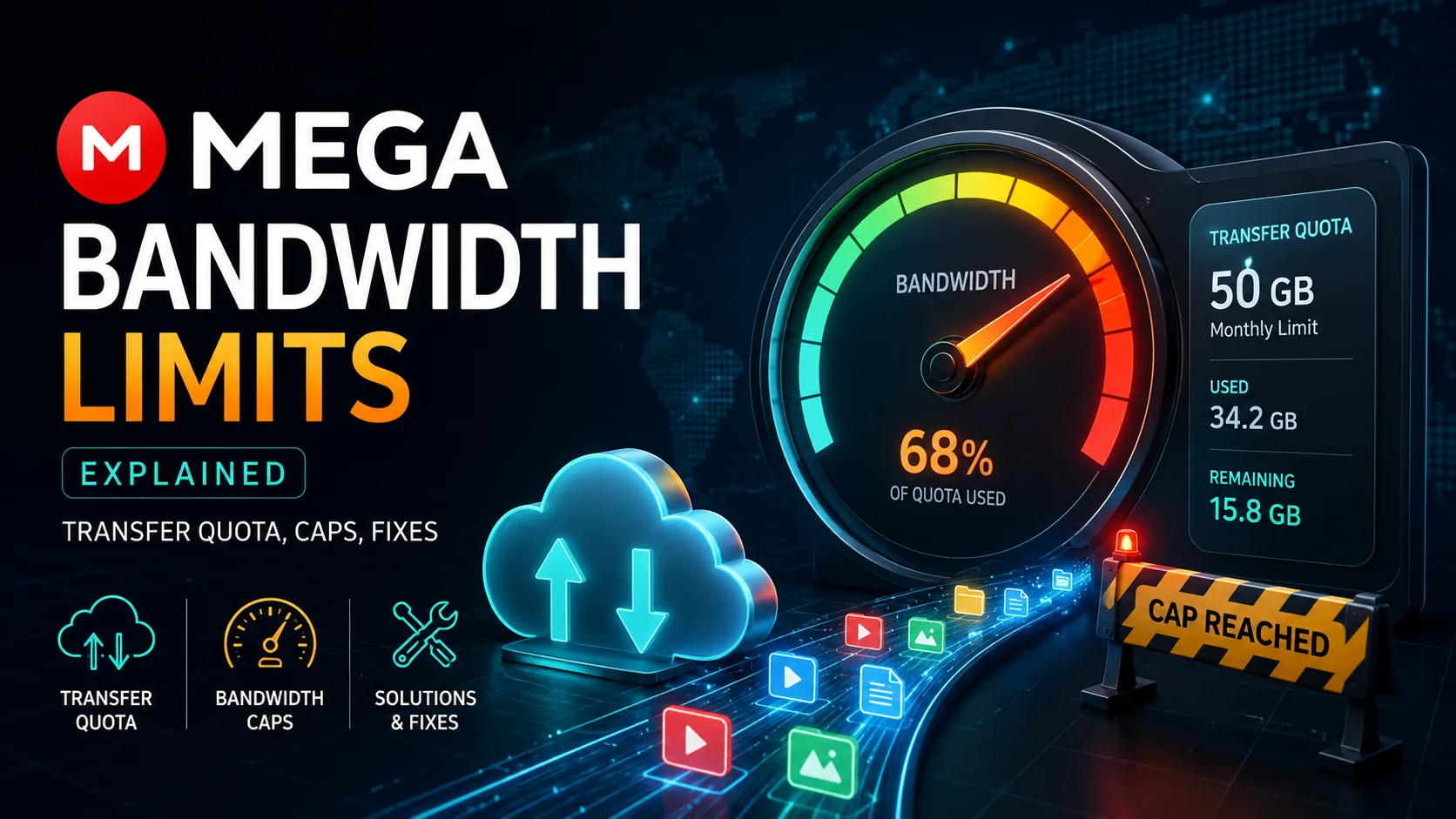
MEGA Bandwidth Limits Explained: Transfer Quota, Caps & Fixes
7 min read
Is pCloud Lifetime Plan Worth It in 2026? The Math That Matters
5 min read
Top Temporary File Hosting Services for Fast, Secure Sharing
4 min read