How to Leave iCloud Without Losing Your Photos: The Complete Migration Guide
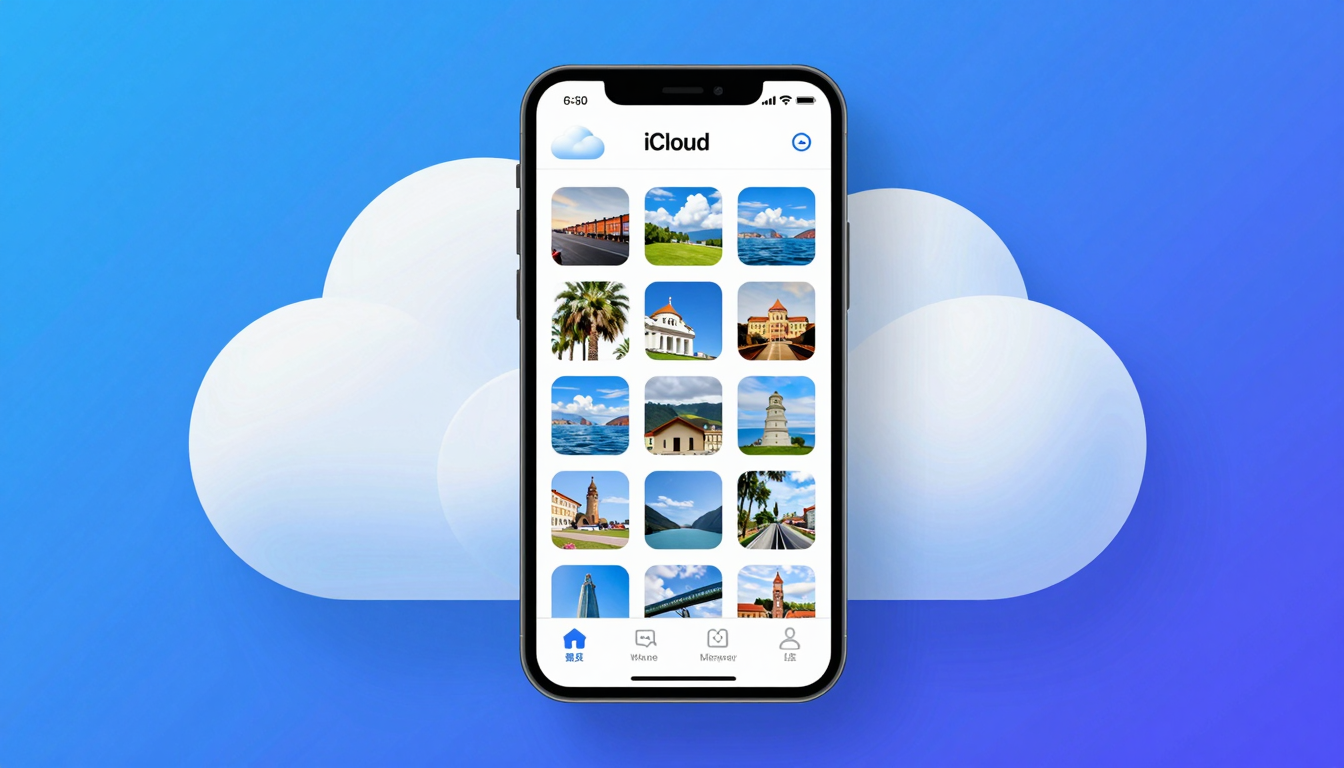
How to Leave iCloud Without Losing Your Photos: The Complete Migration Guide
Switching away from iCloud does not mean abandoning your photo library. Here is the exact step-by-step process to export everything from iCloud and bring it to a new provider — without losing a single photo.
Download photos directly from iCloud.com — works without Mac or Windows
Original quality preserved when downloaded correctly — no compression
Date, location, and camera data preserved with proper export method
Quick answer: how to leave iCloud without losing photos
You can leave iCloud without losing a single photo by downloading a full copy of your library first, verifying it, and only then turning off iCloud Photos or deleting the account. The safe order is always the same: export → verify → back up to a second location → disable iCloud. The right method depends on what you actually want to do:
- Just stop paying for iCloud+ — download your photos, move them to another host, then downgrade to the free 5 GB tier. You keep your Apple ID; only the paid storage goes away.
- Switch off Apple entirely — export at full resolution from a Mac or iCloud.com, re-upload to a platform you control, then sign out of iCloud Photos on every device before deleting data.
- Delete your Apple account — the highest-risk path: Apple permanently erases iCloud photos after the closure grace period, so a verified off-Apple backup must exist before you start.
Where the exported photos should live: keep at least two copies — a local drive plus a cloud host you own.
- fii.one — upload the whole exported library, keep originals at full quality, and share albums by secure link instead of an Apple-only share.
- Google Photos / Google Drive — familiar, but scans content and ties you to another big-tech ecosystem.
- Local external drive — essential as the offline second copy, but on its own it is one drive failure away from total loss.
Before you start: what you need to know
iCloud Photos is designed to keep you in the Apple ecosystem. Exporting your library is technically possible but requires understanding how iCloud stores and organizes your photos. The key insight: iCloud does not give you a simple "download everything" button for your full library. You need to work with what is available.
Before you begin, assess your library:
- How many photos and videos do you have? (Check Settings → iCloud → Manage Account Storage)
- Are your photos in original quality or "Optimize iPhone Storage" mode?
- Do you have shared albums, Live Photos, or RAW files that need special handling?
- How much local storage do you have available to download before re-uploading?
💡 Key Decision: If your photos are in "Optimize iPhone Storage" mode, iCloud keeps only thumbnail-sized versions on your device and full originals in the cloud. You must download the originals before migrating — otherwise you may only export compressed versions.
Method 1: Download from iCloud.com (all platforms)
This method works on any browser, any operating system. It is the most universal approach.
Step 1: Sign in and select photos
Go to icloud.com → sign in with your Apple ID → open Photos. Select the photos you want to download. You can select multiple photos by holding Shift or Command/Ctrl.
Step 2: Download selected photos
Click the download button. iCloud will prepare a ZIP file. For large selections, this can take time. The download button downloads only selected photos — there is no "download all" for the entire library in one click.
Step 3: Extract and organize
Unzip the downloaded file. Photos will be in the order you selected them, not necessarily by date. You may need to reorganize before uploading to your new provider.
Limitation: iCloud.com downloads have a 15GB browser storage limit. Large libraries must be downloaded in batches. This method is practical for libraries under 5,000 photos but becomes tedious for larger collections.
Method 2: Download from a Mac (full quality)
If you have a Mac, this is the most reliable method for preserving original quality, EXIF data, and Live Photos.
Step 1: Enable iCloud Photos on your Mac
Open Photos app → Preferences → iCloud → check "iCloud Photos." Wait for your full library to sync. This may take hours or days for large libraries.
Step 2: Export original quality
Go to File → Export → Export Unmodified Original. Select all photos (Command+A). Choose "Unmodified Original" for full quality. Choose destination folder.
Step 3: Verify before deleting
Do not delete from iCloud until you have verified the export is complete and the files are intact. Check a sample of photos for EXIF data preservation.
Method 3: Download from Windows PC
Install iCloud for Windows from the Microsoft Store. This creates an iCloud Photos folder in File Explorer that syncs with your iCloud library.
Step 1: Install and sign in
Install iCloud for Windows → sign in with your Apple ID → enable Photos in iCloud settings. The iCloud Photos folder will appear in File Explorer.
Step 2: Copy files to local storage
Navigate to the iCloud Photos folder → select all → copy to a local folder. This preserves the download/upload originals mode.
After download: upload to fii.one
Once your photos are safely on local storage:
- Sign in to your fii.one account
- Upload the exported folder directly from the fii.one web interface or desktop app
- fii.one preserves original file names, EXIF data, and folder structure
- Your photo library is now in zero-knowledge encrypted storage with no storage ceiling
Compare: fii.one vs iCloud.
How to cancel iCloud after migration
- Go to appleid.apple.com → Manage Account → iCloud → Manage Storage
- Downgrade to the free 5GB tier or cancel entirely
- If you cancel iCloud+, your storage drops to 5GB. Files over 5GB become read-only.
- Make sure all photos are fully downloaded before cancelling — do not rely on access after cancellation
iCloud vs. a library you fully control
Once your photos are exported, the real question is where they should live long-term. Staying on iCloud is convenient but locks your library into Apple's ecosystem and pricing. Here is how iCloud Photos compares to keeping the same library on a host you own, plus a purely local backup.
| What matters | iCloud Photos | fii.one (host you own) | Local external drive |
|---|---|---|---|
| Keeps full-resolution originals | Yes, but device copies may be optimized | Yes — you upload the exported originals | Yes |
| Works outside Apple devices | Limited (web only, clunky on Windows/Android) | Any browser, any OS | Needs the drive physically connected |
| Share albums with non-Apple users | Awkward for people without Apple IDs | Secure share link, no account required | Not possible remotely |
| Off-site copy if a device dies | Yes (cloud) | Yes (cloud) | No — single point of failure |
| Ongoing cost model | Monthly iCloud+ tiers, price rises with size | Flat-rate hosting, predictable | One-time drive cost |
The safest setup after leaving iCloud is the 3-2-1 rule: keep your photos in at least two places (a cloud host you own plus a local drive), on two different media types, with one copy off-site. That way, cancelling iCloud never means trusting a single basket again.
Migration checklist before you disable iCloud Photos
- Export everything from iCloud.com or a Mac (full quality, not optimized copies).
- Verify the count — match the exported file count against your library total so nothing was skipped.
- Upload to a host you control such as fii.one, keeping originals intact.
- Make a second local copy on an external drive as your offline backup.
- Only then turn off iCloud Photos on each device, and downgrade or delete once both copies are confirmed.
Frequently asked questions
Will I lose my photos the moment I cancel iCloud+?
No. Cancelling iCloud+ drops you back to the free 5 GB tier, but your photos are not deleted instantly. If your library exceeds 5 GB, iCloud switches to read-only and only starts removing files after a warning grace period (roughly 30 days, with account recovery possible up to 90 days). The safe move is to export a full copy and upload it somewhere you control — for example fii.one — before the grace period ends.
Does turning off iCloud Photos delete photos from my iPhone?
It depends on your storage setting. If your iPhone used Optimize iPhone Storage, some full-resolution originals live only in iCloud, so disabling sync can leave you with lower-quality local copies. That is exactly why you should download originals at full quality from a Mac or iCloud.com first, verify them, and keep that export as your master copy before switching iCloud Photos off on any device.
What is the safest place to move my photos after leaving iCloud?
Follow the 3-2-1 rule: at least two copies, on two types of media, with one off-site. In practice that means a cloud host you control plus a local external drive. A host like fii.one keeps your originals at full quality, works from any browser or OS (not just Apple devices), and lets you share albums by secure link — while the external drive gives you an offline backup that does not depend on any provider staying online.
Will I lose my photos if I cancel iCloud?
Only if you have not downloaded them first. iCloud storage drops to 5GB when you cancel. Files over 5GB become read-only. You have a grace period before permanent deletion. Download everything before cancelling.
Does iCloud.com export original quality?
Yes — iCloud.com downloads the original uploaded files, including RAW photos and videos. However, photos stored in "Optimize iPhone Storage" mode may need to be downloaded from your device first to ensure full originals are available.
What happens to my Live Photos?
Live Photos export as MOV files alongside the still image (JPG). Both files transfer correctly when using the Mac Photos export method. iCloud.com downloads may handle them differently depending on browser settings.
How long does it take to download a large iCloud library?
It depends on your internet speed and library size. A 100GB library at 10MB/s upload speed takes about 3 hours to download. Large libraries (500GB+) can take multiple days. Plan accordingly and do not interrupt the process.
Leave iCloud with your photos intact
Download your photos, export them, and upload to fii.one pricing — zero-knowledge storage with no storage ceiling. For a direct comparison, see fii.one vs iCloud.
Join thousands of users who trust fii.one for fast, private cloud storage.
Get Started Free →fii.one Team
The fii.one blog brings you guides, tips, and insights on file storage, sharing, and productivity.
← Previous
Is iCloud Really Private? The Honest Answer About Apple's Data Practices
Next →
Is Tresorit Worth the Price in 2026? The Complete Value Assessment
Related Articles
MEGA Bandwidth Limits Explained: Transfer Quota, Caps & Fixes
7 min read
Is pCloud Lifetime Plan Worth It in 2026? The Math That Matters
5 min read
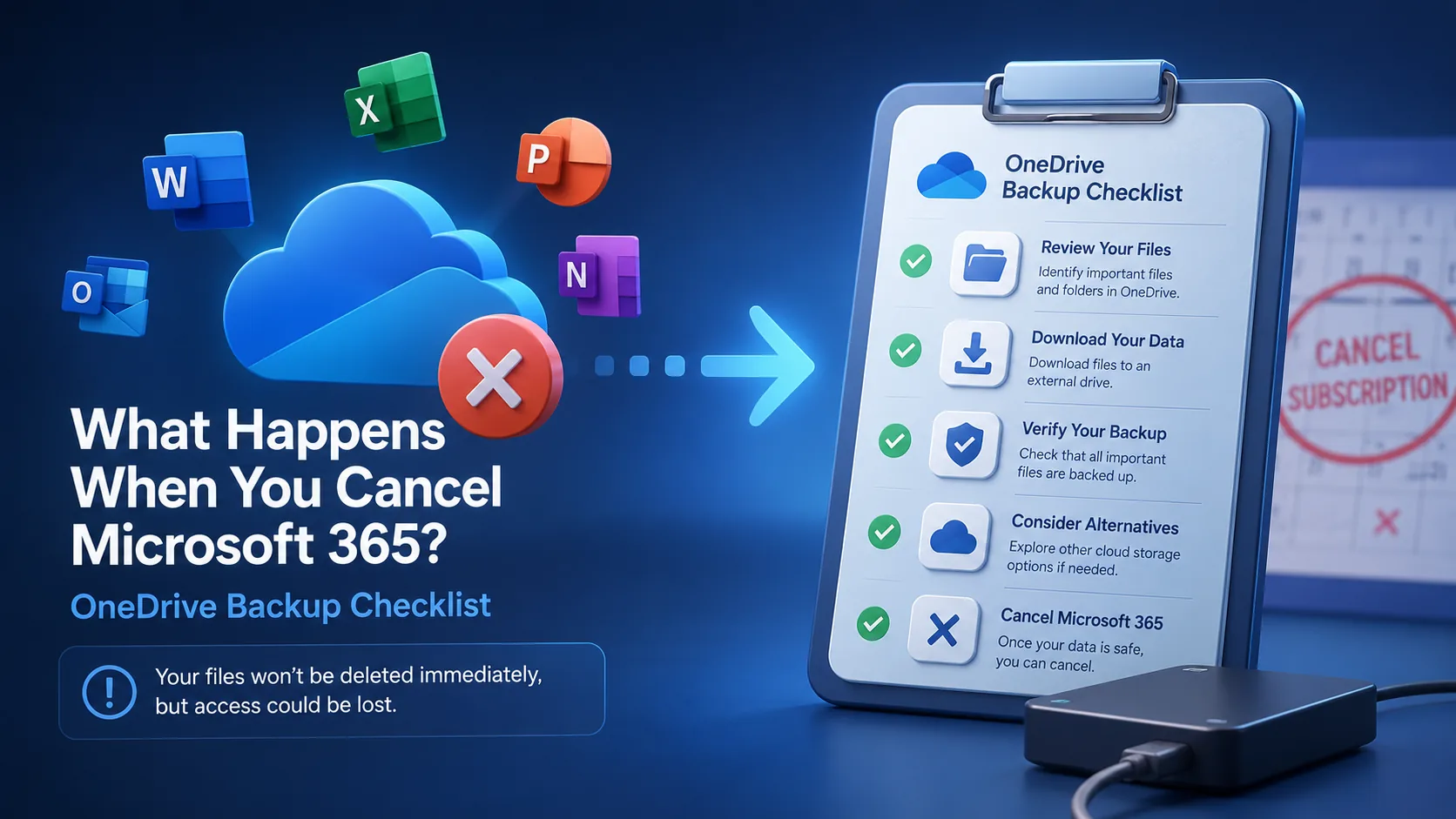
What Happens When You Cancel Microsoft 365? Files, OneDrive & Checklist
7 min read
What is File Hosting? Your Guide to Cloud Storage & Sharing
8 min read