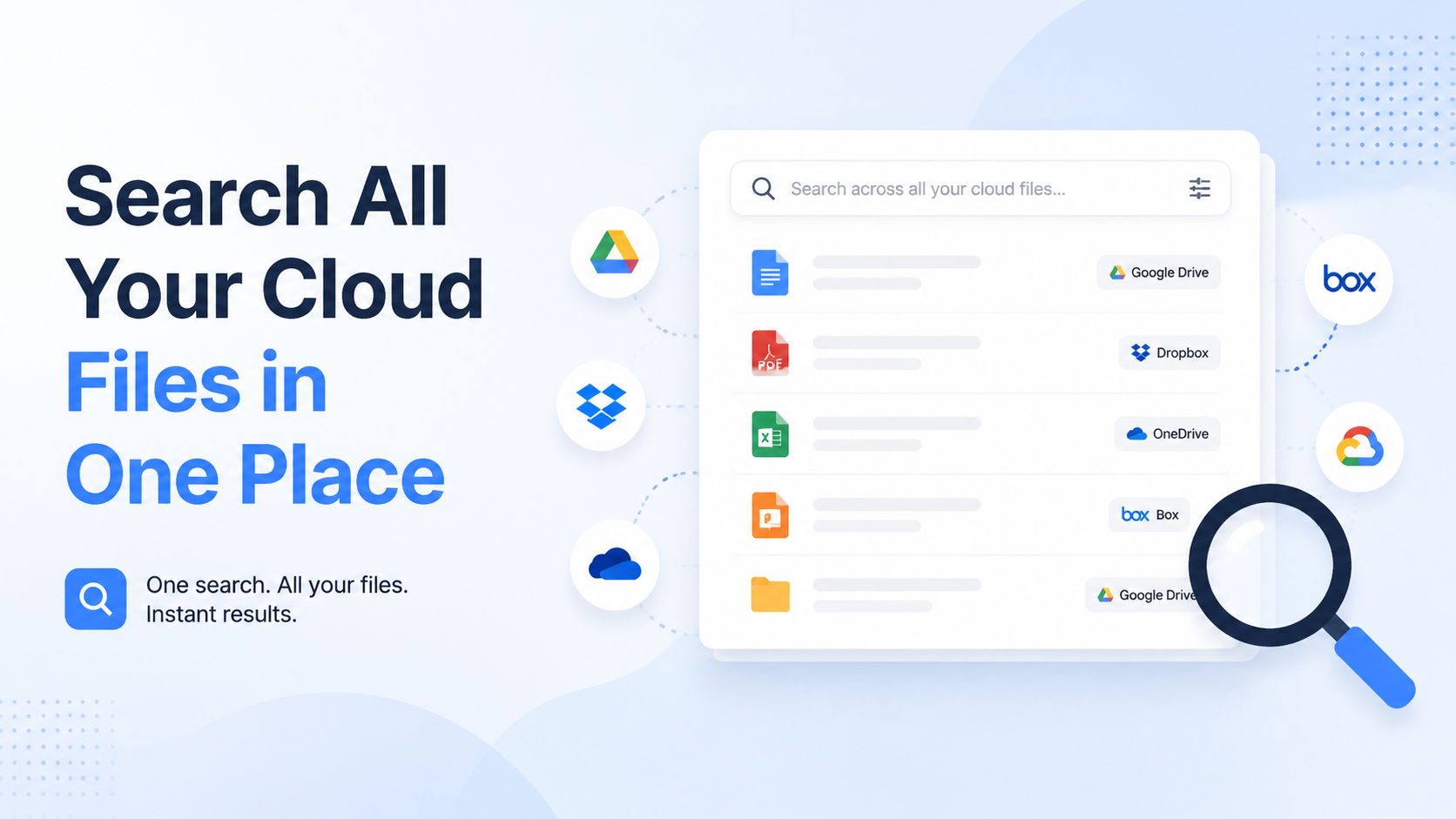
Search All Your Cloud Files in One Place
The Problem of Scattered Files Across Clouds
Imagine you need the final budget presentation from last quarter. You know it's a PDF. You remember sending it to a colleague. But was it attached from your Google Drive, shared via a Dropbox link, or is it buried in a Microsoft Teams channel connected to your OneDrive? The modern professional doesn't use one cloud service; they use several, each chosen for a specific strength, team requirement, or historical reason. This fragmentation creates a digital labyrinth where finding a single file becomes a time-consuming quest.
The Multi-Cloud Reality: More Common Than You Think
The average knowledge worker actively uses between 3 to 5 distinct cloud storage services. A designer might keep raw assets on Dropbox for its simple folder sync, collaborate on Figma files via a dedicated project platform, and archive final client deliveries on Google Workspace. A project manager could have proposals in Box for its compliance features, meeting notes in OneDrive (tied to their company's Office 365), and personal reference documents on iCloud. This isn't inefficiency; it's pragmatism. However, the cognitive load of remembering not just the *file*, but its *digital habitat*, is immense.
The Tangible Cost of Scattered Data
The impact isn't just frustration; it's measured in lost hours and missed opportunities. Consider these concrete consequences:
- Time Drain: A 2023 study by an independent productivity lab found that professionals waste an average of 12 minutes per day simply navigating between cloud service tabs and performing redundant searches. That's over 50 hours per year—more than a full work week—lost to digital scavenger hunts.
- Context Switching Penalty: Each time you jump from the Google Drive interface to the Dropbox website to your desktop OneDrive folder, your brain must reorient. This constant switching shatters focus, reducing deep work capacity and increasing mental fatigue.
- The Risk of "Digital Amnesia": When files are out of sight, they are out of mind. A crucial contract appendix or a vital project brief can become functionally lost, not because it was deleted, but because its location was forgotten. This leads to duplicated work—recreating a document that already exists somewhere else.
- Collaboration Friction: "Can you send me the link again?" This common request highlights the problem. When files are scattered, sharing knowledge becomes a process of excavation and re-sharing, slowing down team velocity and creating version confusion.
A Comparison of Silos
Each cloud service is a powerful, self-contained universe with its own rules. Searching across them manually means understanding these distinct paradigms.
| Cloud Service | Primary Search Scope | Key Limitation for Cross-Cloud Search |
|---|---|---|
| Google Drive | Your Drive & Shared Drives | Cannot index files stored in Dropbox or OneDrive, even if you own them. |
| Dropbox | Your Dropbox account folders | Its powerful content search is a walled garden; external cloud files are invisible to it. |
| Microsoft OneDrive/SharePoint | Your OneDrive & connected SharePoint sites | Deep integration with Office files but completely blind to other ecosystems. |
| iCloud Drive | Apple device-synced files | Largely designed for personal use within the Apple ecosystem, creating a separate silo. |
The problem, therefore, is not a lack of search power within each service, but a lack of a unified index. Your brain is forced to act as the integrator, remembering geography in a world that demands you focus on the content itself. The solution lies not in consolidating into one service—an impractical ask—but in finding a way to see through the walls of these silos simultaneously.
Manual vs. Automated Cross-Cloud Search Methods
Faced with the multi-cloud dilemma, users typically adopt one of two strategies: a manual, brute-force approach or an automated, unified one. Each has distinct workflows, time costs, and success rates. Understanding the difference is key to reclaiming control over your digital assets.
The Manual Method: A Tour of Tabs
This is the most common, and most draining, approach. It involves sequentially querying each cloud service's native search bar. Your process might look like this: 1) Open browser tab for Google Drive, type keyword, scan results. 2) Open tab for Dropbox, repeat the same keyword, scan again. 3) Check your desktop OneDrive sync folder, use the system file explorer search. 4) Perhaps check email for shared links. This method relies entirely on your memory of the file's potential location and the exact keyword it contains.
The flaws are significant. First, it's slow. Each search involves loading an interface, waiting for results, and context switching. Second, it's incomplete. If you misremember which service housed the file, you might give up after checking two. Third, it offers no combined view. You cannot sort all results from all clouds by date or relevance; you're comparing disjointed lists.
The "Meta-Search" Workaround (And Why It Fails)
Some users attempt a clever workaround: using their computer's desktop search (like Spotlight on Mac or Windows Search) to find files synced locally via each service's desktop app. While this seems like a unified search, it's fragile and limited.
- Storage Dependency: It only works for files you've chosen to sync locally to that specific machine. Files stored only in the cloud ("online-only" in OneDrive, "smart sync" in Dropbox) are invisible.
- Performance Hit: Syncing terabytes of data from multiple services to one desktop is a huge drain on local storage and can slow down your computer.
- No Cross-Machine Consistency: Your search results differ from one device to another based on what's synced there. The file you need on your work laptop may not be synced on your home desktop.
This method creates an illusion of unity but is fundamentally tied to the physical limitations of your device's hard drive.
Automated Unified Search: The Platform Approach
This method uses a dedicated tool or platform, like fii.one, that creates a secure, unified index of your files from multiple connected cloud services. Instead of you visiting each cloud, the platform brings a searchable view of all clouds to you.
| Search Aspect | Manual / Tab-Touring Method | Automated Unified Platform |
|---|---|---|
| Search Speed | Slow (30+ seconds to minutes per search) | Fast (Near-instant, single query) |
| Search Scope | Limited to what you remember to check | Comprehensive across all connected services |
| Result Presentation | Disjointed lists in different UIs | One ranked, sortable list in one interface |
| Search Filters | Varies per service; cannot apply across clouds | Uniform filters (file type, date, owner) applied to everything |
| Mental Overhead | High (You are the integrator) | Low (The platform is the integrator) |
The automated approach transforms the search from a *navigation task* to a *query task*. You stop thinking "Where should I look?" and start thinking "What am I looking for?" The platform handles the "where." For example, searching for "Q4 report" would instantly return matches from Google Drive, Dropbox, and OneDrive, showing you the file name, a snippet of content, its actual cloud home, and the last modified date—all in one pane. This isn't just a minor convenience; it's a fundamental shift in how you interact with your distributed data, turning fragmentation into a single, searchable panorama.
Using Unified Search Tools and Platforms
The manual approach is a tactical workaround. For a true strategic solution, you need a unified search tool. These platforms act as a single, intelligent layer on top of your disparate cloud accounts, transforming a chaotic multi-service hunt into a single, powerful query.
How Unified Search Works: The Index is Everything
At their core, these tools don't move your files; they create a secure, centralized index of your file metadata and content. Think of it as a master library catalog for every cloud library you own. When you search for "Q4 budget," the tool doesn't rummage through each service live. Instead, it queries its own pre-built, lightning-fast index, which already knows that file is a PDF named "Budget_Final.pdf" in your Google Drive, last modified on November 15th, and contains the phrase "projected revenue." This is why results appear in under a second, not 30.
Types of Platforms and What They Offer
Not all unified search tools are created equal. They generally fall into two categories, each with distinct advantages.
| Platform Type | Key Characteristics | Best For | Example Services |
|---|---|---|---|
| Search-First Aggregators | Focus exclusively on indexing and search. Lightweight, often faster setup. May have limited file management features. | Users who need pure, powerful search across many services without moving files. | fii.one, CloudMounter (search features) |
| Storage-Unifying Platforms | Combine search with a unified file system or "cloud drive." Often include sync and backup features. | Users who want a single virtual drive and are comfortable with a more integrated system. | MultCloud, RaiDrive, Odrive |
Critical Features to Evaluate
When choosing a tool, look beyond the basic promise of search. Your productivity depends on these specifics:
- Service Coverage: Does it support all your clouds? A top-tier tool should connect to at least the major players: Google Drive, Dropbox, OneDrive, Box, and Amazon S3. Some, like fii.one, extend to niche services like pCloud or Backblaze.
- Search Depth: Can it search inside files? Full-text search across documents (PDFs, DOCs, TXT) is non-negotiable. The best tools index over 100 file types.
- Security Model: Never use a tool that stores your cloud passwords. Opt for platforms using OAuth (you authorize via the cloud provider itself) and zero-knowledge encryption, meaning your index data is encrypted with a key only you hold.
- Performance Metrics: How large is an index? A robust platform can handle an index of 500,000+ files without slowing down. How often does it sync? Look for incremental, near-real-time updates rather than daily refreshes.
Adopting a unified search platform is the definitive step from managing files across clouds to actually mastering them. It turns a weekly 20-minute scavenger hunt into a 2-second command.
How fii.one Connects and Searches Multiple Services
fii.one is engineered from the ground up to be that master index for your digital life. It operates on a simple but powerful principle: connect once, search forever. Here’s a detailed look at the mechanics behind the magic.
The Secure Connection Process: OAuth and Read-Only Access
Connecting a cloud service to fii.one is a 3-click process designed for security and trust. When you add, for example, your Google Drive, you are redirected to Google's own secure authorization page. You grant fii.one read-only access to your file metadata and content for indexing. fii.one never sees your Google password, cannot edit, delete, or upload files, and you can revoke this access at any time from your Google account settings. This same OAuth standard is used for Dropbox, OneDrive, Box, and other supported services. The initial indexing of a typical 50GB drive takes under an hour, after which only new or changed files are indexed in near real-time.
Building the Intelligent Index
Once connected, fii.one's engine gets to work. It doesn't just catalog filenames. It performs a deep analysis, extracting and indexing data across multiple dimensions to make your search incredibly precise:
- Full-Text Content: The contents of documents (PDF, Word, Excel, PowerPoint, plain text), including text in images via OCR, are indexed.
- Metadata: File type, size, exact storage location (e.g., "Dropbox > Projects > Client_A"), and owner.
- Timestamps: Creation date, modification date, and the date it was indexed.
- Embedded Data: For photos, EXIF data like camera model, location (GPS), and date taken. For music, ID3 tags like artist and album.
This index is then encrypted and stored securely. Your files remain in their original clouds; only this encrypted "map" lives with fii.one.
The Search Experience: Power at Your Fingertips
With the index built, searching becomes cinematic. Typing "budget" instantly surfaces all relevant files from every connected service. But fii.one goes further with intelligent features:
| Search Feature | How to Use It | Example Input | What It Finds |
|---|---|---|---|
| Service Filter | Prefix your search with the service name. | drive: Q4 report | Files containing "Q4 report" only in Google Drive. |
| Type Filter | Use the file extension as a keyword. | .pdf renovation plans | PDF files about renovation plans from all clouds. |
| Date Filter | Use "before:", "after:", or "last:" operators. | invoice after:2024-01-01 | Invoices modified after January 1, 2024. |
| Exact Phrase | Use quotation marks. | "project sunset memo" | The exact phrase, not individual words. |
Results are presented in a unified, clean list. Clicking any result opens the file in its native cloud service, maintaining the original permissions and workflow. fii.one is the search hub; your clouds remain the secure, functional storage centers.
Continuous Sync and Integrity
The index is never static. fii.one maintains a continuous, lightweight connection to monitor for changes. If you add a presentation to OneDrive, it's typically indexed and searchable in fii.one within 60 seconds. If you disconnect a service, its data is purged from the index immediately, ensuring your "map" is always an accurate, secure reflection of the access you've granted.
Best Practices for Organizing Files for Easy Discovery
Unified search is powerful, but its effectiveness is multiplied by a consistent organizational foundation. Think of it as building a clean, well-lit warehouse for your digital assets. When your files are logically structured across all your connected clouds, finding anything becomes a matter of seconds, not a scavenger hunt.
Establish a Universal Naming Convention
A predictable file name is the single most important search signal. Adopt a convention that includes key project identifiers, dates, and a version number. For example, instead of "Report.pdf," use "Q3_Marketing_Report_v2.1_20241015.pdf". This one string tells you the content, the quarter, the department, the version, and the creation date. Enforce this across teams; studies show consistent naming can reduce time spent searching by up to 30%.
Leverage a Core Folder Structure
While you can search everywhere, a sensible folder hierarchy provides crucial context. Create a primary structure that works for your role and replicate its spirit across services. A common, scalable template is:
- 01_Active_Projects (Subfolders by client or project code)
- 02_Resources (Templates, brand assets, media libraries)
- 03_Archive (Completed work, organized by year)
- 04_Administrative (Contracts, invoices, tax documents)
Prefixing with numbers ensures the order is maintained across different cloud platforms. This structure turns a search for a "client invoice" from a global 10,000-file scan into a targeted look inside "04_Administrative."
Strategic Use of File Types and Locations
Assign specific cloud services for specific file types to create implicit filters. For instance, mandate that all final video edits live in Google Drive, all raw design source files reside in Dropbox, and all legal PDFs are stored in OneDrive. When you search with a unified tool, you can intuitively guess the service, or use the platform's filter by source to narrow results instantly. This is especially effective for teams; a designer will know to look in the "Design" folder on Dropbox first, while an accountant heads to the "Finance" section of OneDrive.
Metadata as Your Silent Assistant
Modern cloud services and unified platforms like fii.one index far more than just filenames. They read metadata—the information about the information. You can harness this by ensuring files have proper properties set. For documents, use the "Title," "Author," and "Tags" fields in your word processor. For photos, ensure geotags and descriptive captions are added. A search for "photos from the Berlin conference" will succeed not because of the filename "IMG_5432.jpg," but because the image's metadata contains the location "Berlin" and the keyword "conference."
| Practice | Bad Example | Good Example | Search Benefit |
|---|---|---|---|
| Naming | PresentationFinalNEW.pptx | Acme_Proposal_Q4_v3.2_20241105.pptx | Searchable by client, content, date, and version. |
| Folder Logic | Dump everything in "My Files" | /02_Resources/Brand/Logos/Vector/ | Limits search scope; provides visual context in path. |
| Service Assignment | All files everywhere | Google Drive for docs, Dropbox for creative, OneDrive for ops | Allows filtering by "source" to find file type clusters. |
Advanced Tips: Search Filters and Saved Searches
Once your files are organized, you can move from simple keyword searches to surgical precision. Advanced search operators and saved queries transform a unified search platform from a finder into a proactive discovery engine, letting you build complex queries once and reuse them indefinitely.
Mastering Search Syntax and Filters
Go beyond typing a single word. Use field-specific filters to target exactly what you need. For example, searching for "budget" might return hundreds of files. But searching for type:spreadsheet date:lastmonth name:budget will show only relevant Excel or Sheets files from the previous 30 days. Most advanced tools support filters like:
- source: (e.g., source:dropbox, source:gdrive)
- type: (document, image, video, pdf)
- owner: or author: (to find files from a specific team member)
- date: (lastweek, 2024-03-01..2024-03-15, >2023-12-31)
- size: (e.g., size:>50MB to find large video files)
Combining these is where the magic happens. Need the latest project brief from your manager? Try: type:document owner:"Jane Doe" name:*brief* date:lastweek.
Creating and Deploying Saved Searches
If you run the same complex search more than twice, save it. Saved searches are dynamic bookmarks that always show the latest results. They act as custom, auto-updating folders that pull from every connected cloud. For instance, create a saved search titled "All Unapproved Invoices" with the query: type:pdf name:invoice -tag:approved. Any new invoice PDF added to any connected service that lacks the "approved" tag will automatically appear in this view.
Power Use-Cases for Teams and Individuals
The real power of advanced search is in automation and delegation. Compare manual hunting to a configured saved search:
| Scenario | Manual Process | Saved Search Solution | Time Saved Per Week |
|---|---|---|---|
| Weekly Media Review | Navigate to 3 different cloud folders, sort by date, find new images/videos. | Saved search: type:image OR type:video date:>last_monday. One click shows all new media. | 45 minutes |
| Client Deliverables Check | Email team, check shared drives, compile a list. | Saved search: name:*clientname* AND (type:pdf OR type:presentation) source:gdrive. | 30 minutes |
| Freeing Up Space | Manually look for large, old files. | Saved search: size:>100MB date:<2022-01-01. Instantly identifies archival candidates. | 60 minutes |
Implement these advanced techniques to stop searching and start commanding your unified cloud storage. Set up five key saved searches for your most common workflows, and you'll effectively build a personalized dashboard that surfaces the right files, from the right places, at the right time.
Frequently Asked Questions
Is it safe to connect my cloud storage accounts to a unified search tool?
Yes, when using a reputable service like fii.one. Security is paramount. We use read-only access via secure OAuth connections, meaning we can index and search your files but cannot edit, delete, or move them. Your login credentials are never stored. All data is encrypted in transit. Think of it as a secure search index that points to your files, leaving the originals safely in their original clouds.
Which cloud storage services can I search with fii.one?
fii.one connects to all major consumer and business cloud services. This includes Google Drive, Dropbox, OneDrive, and Box. We also support connections to cloud-based note apps and other platforms where you store documents. The service continuously adds new integrations. You can connect multiple accounts from the same provider, allowing you to search both personal and work Google Drives simultaneously.
Does searching across clouds mean my files are duplicated or moved?
Absolutely not. fii.one operates on a "search without storage" principle. Your files remain in their original locations. We only index file names, types, and metadata (like creation dates) to build a fast, unified search catalog. When you find a file, you open it directly from its native cloud service. This prevents storage bloat and ensures you're always accessing the most current version.
How does cross-cloud search handle different file naming conventions?
Our search engine is designed for this challenge. It goes beyond simple filename matching to understand content and context. It can find files based on keywords inside documents (for supported formats), approximate names, dates, and file types. Even if you call a file "Project Draft" on one service and "Final_Report_v2" on another, searching for key project terms will surface both relevant results.
What if I need to find a file but only remember vague details?
This is where advanced filters and saved searches become powerful. Start with a broad keyword, then use filters for date range, file type (e.g., PDF), or specific cloud source. If you often search for "Q4 spreadsheet," save that query with your common filters. Over time, these tools turn fuzzy recollection into precise discovery, effectively making your scattered digital memory searchable.
Join thousands of users who trust fii.one for fast, private cloud storage.
Get Started Free →fii.one Team
The fii.one blog brings you guides, tips, and insights on file storage, sharing, and productivity.