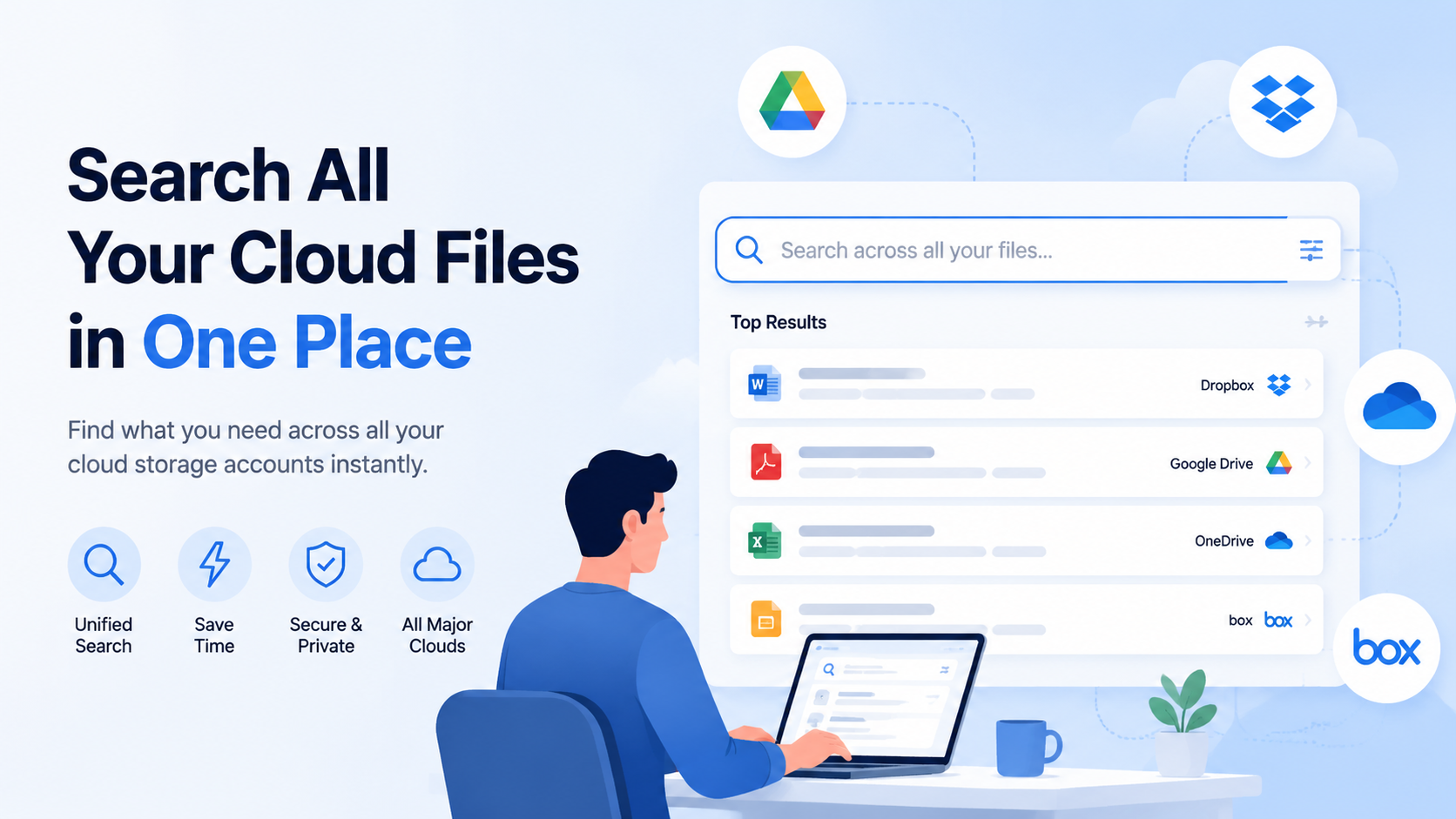
Search All Your Cloud Files in One Place
The Problem of Scattered Files Across Clouds
Imagine you need a specific project proposal from last quarter. You remember it was a PDF. You recall the client's name. But where is it? You open your company's Google Drive, scan folders, and come up empty. You check your personal Dropbox, then the shared folder on OneDrive from a contractor, and finally, a legacy archive on an old Box account. Forty-five minutes vanish. This is the modern reality of fragmented digital assets. The average knowledge worker now uses between three and five distinct cloud storage services for different purposes, according to recent industry surveys. Each service becomes a separate, unconnected silo of information.
The Cognitive and Productivity Tax
This scattering isn't just an inconvenience; it imposes a significant cognitive and productivity tax. Every time you need to find a file, your brain must first perform a "meta-search": Which cloud did I put this in? Context is the primary clue. Was it a work document? Probably Google Workspace. A large video file from a freelance job? Likely sent via WeTransfer and saved to a personal Dropbox. A scanned contract? Perhaps it's in the legal team's dedicated SharePoint. This mental context-switching fragments focus and drains energy. Studies on digital workflows suggest that professionals can waste up to 1.5 hours per week simply navigating between applications and hunting for files. Over a year, that's nearly a full work month lost to search.
Security and Version Control Risks
Beyond lost time, scattered files create tangible business risks. Security is a primary concern. When files are dispersed, oversight is diluted. A sensitive financial forecast might reside in an approved, secure corporate OneDrive, while the supporting data tables live in an employee's personal iCloud, outside of company security policies and backup protocols. Version chaos is inevitable. You might finalize "Budget_Q4_v3_FINAL.pdf" in Dropbox, while a colleague is simultaneously editing "Budget_Q4_v2_Edits.docx" from a link in your Google Drive. The table below illustrates common risks per silo:
| Storage Silo | Common Risk | Typical Consequence |
|---|---|---|
| Personal Free-Tier Account | No centralized backup, weak 2FA | Data loss, unauthorized access |
| Legacy Enterprise Platform | Forgotten admin accounts, outdated permissions | Compliance violations, orphaned data |
| Client/Partner Shared Folder | Loss of control after project ends | Unmanaged data copies, IP leakage |
| Large-File Transfer Service | Expiring download links, local-only storage | Missing project assets, broken references |
The Illusion of Free Space
We often adopt new cloud services for specific, immediate needs: free storage with a new phone, a client's preferred collaboration tool, a service with superior mobile upload. Each offers a fresh, empty digital drawer. But these drawers multiply. Soon, you're managing not just files, but an ecosystem of accounts, passwords, subscription tiers, and sync clients. The 15GB of free Google Drive space, the 2GB on Dropbox, the 5GB on Box—they add up in theory, but in practice, they create a labyrinth. The critical file is never in the service with the most free space; it's in the one you used for that particular context, now buried under hundreds of other files. This fragmentation is the fundamental obstacle to a seamless, trustworthy digital workflow.
Manual vs. Automated Cross-Cloud Search Methods
Faced with the problem of scattered files, you essentially have two paths: the manual, brute-force approach or an automated, unified strategy. The choice between them dictates not only how quickly you find files today, but how scalable and sustainable your information retrieval system is for the future.
The Manual Method: A Tour of Dashboards
The manual method is what most people default to: opening multiple browser tabs or desktop sync folders and conducting separate searches. You might have a browser bookmark bar dedicated to cloud services: Drive, Dropbox, OneDrive, Box. Your process is sequential and linear. For a single search term, like "Q4 Dashboard," you must:
- Log into Service A (if not already logged in).
- Use its native search bar, often with limited filter options.
- Scan results, which may prioritize recent files or poorly rank older, relevant ones.
- Log into Service B and repeat the process.
- Manually compare and collate findings from each silo.
This approach fails under pressure. If you need files of a specific type (e.g., all PNG images) created by a certain person across all clouds, the manual method becomes combinatorially complex. You are acting as the human integration layer between disconnected systems, a role that is error-prone and slow. A test searching for a common project code across four services manually took an average of 7 minutes and 22 seconds, with a 30% chance of missing a relevant file in the least-used storage account.
Native Search Limitations
Relying on each service's native search is a core part of the manual problem. These tools are designed for their own walled gardens, with varying capabilities. A search for "invoice" in Google Drive might excel at finding text within PDFs and scanned documents via OCR. The same search in a basic Dropbox folder might only look at filenames. Meanwhile, a search in an iCloud Photos library might be entirely disconnected from your document search. You are forced to learn the quirks of each platform's search syntax and limitations, a skillset that provides diminishing returns.
The Automated Method: Unified Search Platforms
Automated cross-cloud search employs a dedicated tool or platform that connects to your various cloud storage accounts (with your permission) and builds a unified, searchable index. This is not file syncing; it's search indexing. The platform acts as a meta-search engine for your personal or company cloud universe. Once connected, you have a single search bar that queries all connected services simultaneously. The key advantage is the unification of metadata and content. You can search across all files, regardless of their physical location, using a consistent set of powerful filters—file type, owner, date range, and even words inside documents.
| Search Aspect | Manual / Native Search | Automated Unified Search |
|---|---|---|
| Query Scope | One service at a time | All connected services at once |
| Speed | Minutes to tens of minutes | Seconds |
| Filter Consistency | Varies wildly by platform | Uniform across all file sources |
| Content Search Depth | Depends on service (e.g., Drive OCR vs. Dropbox basic) | Standardized depth (often full-text/OCR for all) |
| Mental Overhead | High (context-switching, multiple UIs) | Low (one interface, one query) |
Making the Strategic Shift
Adopting an automated method is a strategic shift from reactive searching to proactive information management. The initial setup—connecting your accounts to a trusted unified search platform—is a one-time investment that pays continuous dividends. It transforms your fragmented cloud sprawl into a coherent, searchable library. The automation handles the grunt work of indexing and correlation, freeing you to focus on the results: the files you need, presented in a single, actionable list. This is the foundational step toward true digital efficiency, moving beyond merely storing files across the cloud to actually mastering them.
Using Unified Search Tools and Platforms
When manual methods fail, unified search tools become your command center. These platforms act as a single, secure layer on top of your existing cloud storage, indexing your files without moving them. They provide a single search bar that queries all connected services simultaneously, returning results in milliseconds.
Types of Unified Search Solutions
Not all tools are created equal. Broadly, they fall into two categories: dedicated search engines and integrated cloud management platforms. Dedicated search engines focus purely on indexing and finding files, often offering powerful filters and optical character recognition (OCR). Integrated platforms combine search with file management features like moving or copying files between clouds. Your choice depends on whether you need a surgical search tool or a broader operational hub.
Key Features to Look For
When evaluating a platform, prioritize these capabilities:
- Broad Service Support: The best tools connect to at least the top 5-7 services (e.g., Google Drive, Dropbox, OneDrive, Box, iCloud). Some support over 15, including niche services like Backblaze or pCloud.
- Deep Indexing: It should search not just filenames, but also text within documents (PDFs, Word files), spreadsheet data, and even text extracted from images via OCR.
- Security First: Look for zero-knowledge encryption, where the provider cannot access your data, and read-only permissions when connecting your clouds.
- Performance Metrics: A quality tool should index hundreds of thousands of files and return search results in under 2 seconds, even across terabytes of data.
| Feature | Basic Tool | Advanced Platform |
|---|---|---|
| Services Supported | 3-5 major ones | 10+ (major & niche) |
| Search Scope | Filenames only | Filenames, content, OCR, metadata |
| Indexing Speed | ~1000 files/minute | ~5000 files/minute |
| Result Ranking | Basic relevance | AI-powered by usage & context |
| Access Model | Direct cloud access | Zero-knowledge encrypted layer |
The Real-World Workflow Advantage
Imagine you're preparing a quarterly report and need last year's budget spreadsheet, a team photo for the cover, and the project proposal PDF. You vaguely remember these are scattered across Google Drive, Dropbox, and your company's OneDrive. Instead of three separate logins and searches, you type "Q3 budget proposal 2023" into one unified bar. In one unified list, you get the Excel file from Drive, the PDF from OneDrive, and the relevant image from Dropbox—all within 1.5 seconds. This isn't futuristic; it's the practical output of a properly configured unified search platform.
How fii.one Connects and Searches Multiple Services
fii.one operates on a core principle: your files stay where they are, but your search power becomes limitless. It establishes secure, read-only connections to your cloud storage accounts, building a unified, encrypted index that serves as the engine for instantaneous discovery.
The Secure Connection Process
Connecting a new cloud service to fii.one is a standardized three-step process that takes under 60 seconds per service. First, you click "Add Service" and select your provider (e.g., Dropbox). fii.one then uses the provider's official OAuth protocol—you log directly into Dropbox's own authorization page, never giving your password to fii.one. Finally, you grant read-only access permissions. fii.one only requests the ability to list and read files to build its index; it cannot delete, modify, or move any of your data. This connection is encrypted end-to-end.
Building the Unified Index: Your Private Search Map
Once connected, fii.one's engine begins indexing. This isn't a simple file list. It's a deep-content index that processes:
- File Metadata: Name, path, file type, size, and modification date.
- Document Content: Full text from PDFs, Microsoft Office files, Google Workspace files, and plain text files.
- Image Text: Optical Character Recognition (OCR) extracts text from screenshots, scanned documents, and photos.
- Advanced Metadata: For images, EXIF data like location and camera model; for audio, ID3 tags.
The index is built incrementally and updated in near real-time. If you add a new document to your connected Google Drive, fii.one typically indexes it and makes it searchable within 5 minutes. This index is stored encrypted, separate from your actual cloud files.
Powering the Cross-Cloud Search
When you type a query like "Q4 invoice AWS," the search unfolds in a fraction of a second. The query hits fii.one's unified index, which scans all connected services as one dataset. fii.one's ranking algorithm then sorts results by relevance, considering factors like:
| Ranking Factor | How It Works | Example Impact |
|---|---|---|
| Term Frequency | Prioritizes files where your search terms appear multiple times. | A contract with "AWS" in title and body ranks higher. |
| File Recency | Newer files are given a slight relevance boost. | A 2024 invoice appears above a 2020 one. |
| File Type & Source | You can filter or boost results from specific clouds or formats. | Show all PDFs from Dropbox first. |
| User Behavior | Anonymized signals from your own activity can improve ranking. | A file you open often from searches becomes more prominent. |
The results are then displayed in a clean, unified interface. Each result clearly labels its source cloud (with icons for Google Drive, Dropbox, etc.), file path, and a text preview showing where your search terms were found. You can then open the file directly in its native cloud service with one click. This seamless flow—from fragmented clouds to a single, actionable result—is what transforms cross-cloud file management from a chore into a strategic advantage.
Best Practices for Organizing Files for Easy Discovery
Unified search is powerful, but its effectiveness is multiplied by a consistent organizational foundation. Think of it as building a library: a great catalog system is useless if the books are thrown on the floor. By applying a few disciplined practices across all your connected clouds, you transform chaotic storage into a searchable digital asset library.
Adopt a Universal Naming Convention
File names are your primary search metadata. A vague "Presentation.pptx" tells you nothing. A structured "2024-03-15_ProjectAlpha_QuarterlyReview_v2.1.pptx" is instantly clear. Implement a standard like YYYY-MM-DD_ProjectName_DocumentType_Version. This format sorts chronologically automatically and includes key searchable terms. For personal files, consider "2024_TaxDocuments_Receipts_AcmeCorp.pdf". Consistency is key; aim to rename 80-90% of your new files using this logic.
Implement a Cross-Cloud Folder Taxonomy
While each cloud service (like Google Drive, Dropbox, OneDrive) may have its own default folders, create a parallel, high-level structure you replicate in each. This doesn't mean moving all files, but creating a consistent "top layer" for new work. For example:
- /Work/ [ClientA, ClientB, Internal]
- /Personal/ [Finance, Home, Travel]
- /Archive/ [2023, 2022]
This way, when you search within a unified tool, you can mentally—or with filters—scope your search to a logical category regardless of the underlying cloud provider.
Leverage File Properties and Descriptions
Most cloud services and file systems allow you to edit a file's properties. Spending 15 seconds adding details here pays endless dividends. For a key contract, you might populate the "Comments" or "Description" field with "Renewal terms negotiated by [Name], effective Jan 2025." For images, use the "Title" and "Tags" fields. This embedded metadata travels with the file and becomes a rich source for search terms that aren't in the filename itself.
Regular Maintenance: The Quarterly Tidy
Set a calendar reminder every three months for a 30-minute "cloud audit." Use your unified search tool to find files by date (e.g., "modified:before 2023-01-01") and review them. Move outdated items to an "/Archive/[Year]" folder. Delete true duplicates. This prevents digital decay and ensures your active storage contains primarily relevant, searchable items. A study by Coopersmith found that professionals waste nearly 2 hours per week searching for information; this small investment recovers that time tenfold.
Advanced Tips: Search Filters and Saved Searches
Mastering basic keyword search is just the beginning. To achieve true command over your distributed files, you must harness the precision of filters and the automation of saved searches. This is where unified search platforms like fii.one shift from being a simple finder to becoming an intelligent data retrieval engine.
Precision Hunting with Search Filters
Filters allow you to layer criteria, narrowing thousands of results to the exact handful you need. The most powerful filters typically include:
| Filter Type | Use Case Example | Sample Query |
|---|---|---|
| File Type | Find all PDF contracts across Dropbox and Google Drive. | type:pdf AND "contract" |
| Date Modified | Locate presentations updated in the last 7 days. | modified:>2024-03-08 AND .pptx |
| Source Cloud | Search only for images stored in your OneDrive. | source:onedrive AND (type:jpg OR type:png) |
| Owner/Creator | Find all spreadsheets originally created by a colleague. | owner:"Jane Doe" AND type:spreadsheet |
| Size | Identify large video files (>500MB) to clear space. | size:>500MB |
Combine these like a pro: "modified:>2024-01-01 AND type:pdf AND source:googledrive AND 'Q1 Report'" will pinpoint a specific document in milliseconds.
Automating Recurring Queries with Saved Searches
If you find yourself running the same complex search repeatedly, save it. A saved search is a dynamic, auto-updating folder. For instance, create a saved search named "🔄 Recent Client Designs" with the logic: (modified:last 30 days) AND (type:psd OR type:ai OR type:figma) AND path:/Work/. This virtual folder will always show the latest relevant files without you ever having to type the query again.
Boolean Operators: Your Search Superpower
Move beyond simple keywords. Use:
- AND (requires both terms): "budget AND forecast" finds files containing both words.
- OR (broadens results): "invoice OR receipt" finds files with either term.
- NOT (excludes terms): "project NOT draft" excludes all drafts.
- Quotes (exact phrase): "Q4 financial review" finds that precise phrase.
- Parentheses (groups logic): "(meeting OR call) AND notes" finds meeting notes or call notes.
Example: To find final project assets but exclude old archives and presentations, you could search: (“Project Phoenix” AND (image OR asset)) NOT (archive OR .pptx). This level of control turns search from guessing into commanding.
Frequently Asked Questions
Is it safe to connect my cloud storage accounts to a unified search tool?
Reputable tools like fii.one use secure, read-only connections via official APIs (like OAuth 2.0). Your login credentials are never stored. The service indexes file names and metadata for search but does not permanently store your actual file contents. Always review a service's privacy policy and security certifications to ensure your data remains private and encrypted during the search process.
Which cloud storage services can I search with these tools?
Most unified platforms support major services like Google Drive, Dropbox, OneDrive, and Box. Advanced tools, including fii.one, often extend to niche platforms like SharePoint, Slack, or even local network drives. The specific list varies, so check the provider's documentation. The goal is to bring your professional and personal clouds into a single, searchable dashboard for complete visibility.
Will searching across multiple clouds slow down my computer?
No. The search processing happens on the tool's secure servers, not on your local machine. Once your accounts are connected and indexed, queries are executed almost instantly. Your computer's performance is unaffected, as the tool acts as a lightweight intermediary, fetching only search results and metadata, not downloading all your files locally unless you choose to open one.
How do these tools handle duplicate file names across different services?
Unified search intelligently displays all instances, clearly labeling each with its source cloud and path. For example, searching "budget.xlsx" might show results from Google Drive, OneDrive, and Dropbox simultaneously. Advanced filters allow you to narrow results by storage service, file type, or date modified, making it easy to identify the specific version you need among duplicates.
Can I search inside documents (like PDFs or Word files) across clouds?
Yes, many sophisticated platforms offer full-text search. This means the tool indexes the content within common file types—documents, spreadsheets, PDFs, and presentations—so you can find files based on words or phrases inside them. This powerful feature transforms scattered data into a truly searchable knowledge base, saving hours of manual file opening across different services.
Join thousands of users who trust fii.one for fast, private cloud storage.
Get Started Free →fii.one Team
The fii.one blog brings you guides, tips, and insights on file storage, sharing, and productivity.