Search All Your Cloud Files in One Place
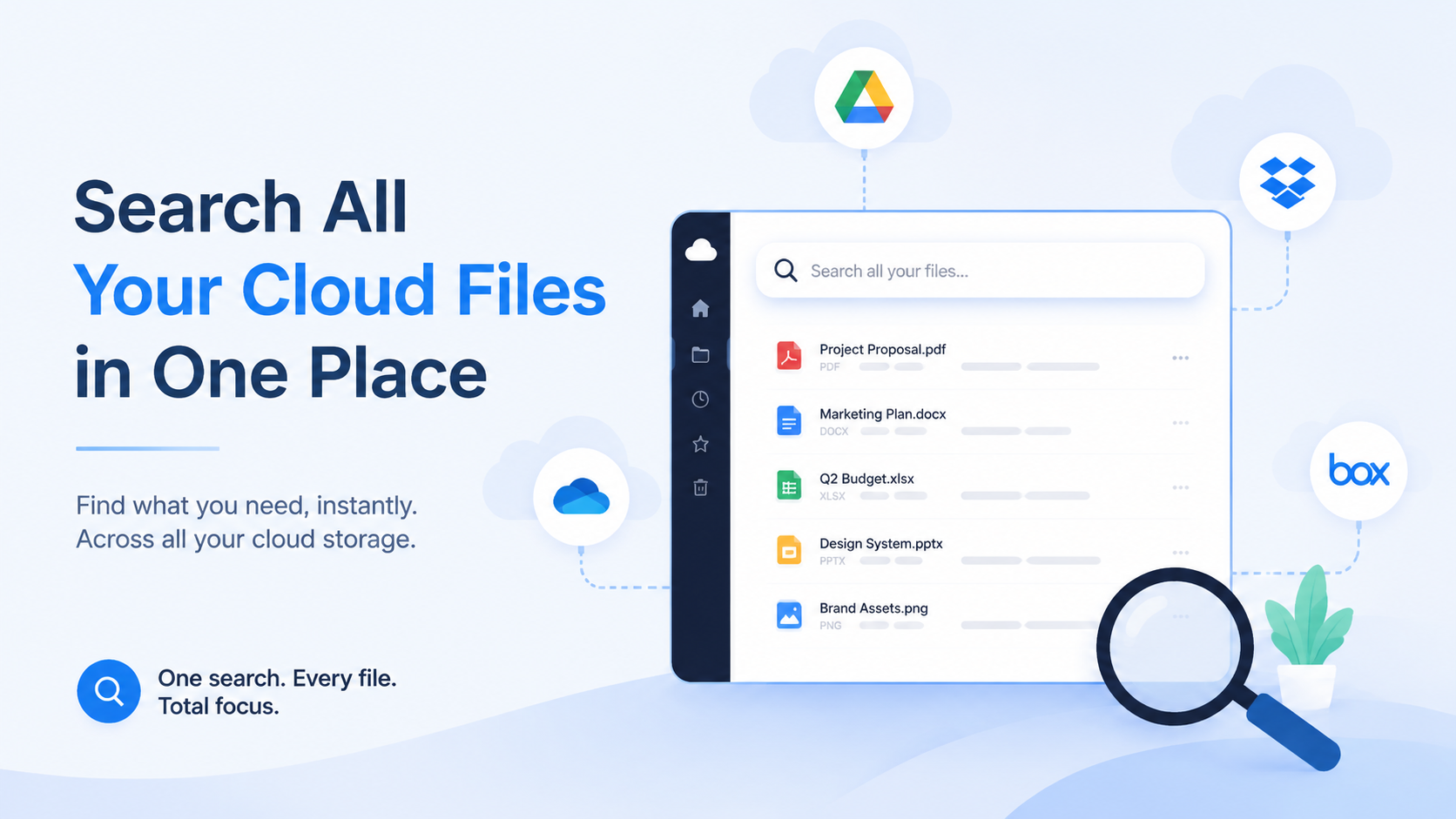
The Problem of Scattered Files Across Clouds
Imagine you need the final Q4 financial presentation. You know it exists. You remember editing it. But where is it? Your heart sinks as you realize the truth: it could be in your company's Google Drive, your personal Dropbox, the client's shared OneDrive folder, or even attached in an old email thread saved to iCloud. This is the modern reality of digital work. The average knowledge worker now uses between three to five different cloud storage services for various projects, clients, and personal data, according to recent industry surveys. This fragmentation isn't a choice; it's a consequence of collaborative demands, vendor-specific features, and the organic growth of our digital toolsets.
The Cognitive and Productivity Tax
Every search across multiple clouds begins with a mental inventory. You must recall not just the file's name, but its provenance. Was it a collaboration with the design team (likely Figma or shared via Dropbox Paper)? Or the contract from legal (almost certainly a PDF in the secured SharePoint)? This context-switching imposes a severe cognitive tax. A 2023 study by the University of California Irvine found that it takes an average of 23 minutes to fully regain deep focus after an interruption. Hunting through multiple cloud tabs is a series of self-inflicted interruptions. What feels like a "quick check" in Google Drive, then OneDrive, then Box, can easily consume 15-20 minutes of fractured attention, derailing your workflow entirely.
The Risk of Data Silos and Redundancy
When files are scattered, organization breaks down. The same file often exists in multiple places—a "final_v1.pdf" in Drive, a "final_REAL.pdf" in Dropbox, and a "final_ACTUAL_FINAL.pptx" on your desktop synced to iCloud. This creates a nightmare of version control. Which one was sent to the client? Which one contains the latest edits? The table below illustrates the common chaotic outcomes of this scattering:
| Cloud Service | Typical Content Silos | Common Search Pain Point |
|---|---|---|
| Google Drive | Collaborative documents, marketing assets | Deep in nested shared team folders |
| Microsoft OneDrive/SharePoint | Internal company documents, Office files | Complex permissions hiding files from search |
| Dropbox | Large media files, freelance project shares | Forgetting which client folder was used |
| iCloud | Personal photos, iOS device backups | Poor web interface for document search |
| Box | Enterprise-secured files, compliance docs | Isolated from the rest of your workflow |
This siloing isn't just inconvenient; it's a business risk. Critical information becomes invisible. A sales proposal buried in an old, disconnected Box folder might as well not exist when preparing for a new client meeting. The data is there, but its value is lost because it cannot be discovered at the moment of need.
The Security and Cost Implications
Scattered files are harder to secure and manage. When you leave a company or finish a project, do you remember to clean up access from all five services? Orphaned files with sensitive data can linger in personal clouds. Furthermore, this fragmentation can lead to unnecessary spending. Without a unified view, you might be paying for redundant storage tiers across multiple platforms, or your team might be duplicating work because they couldn't find an existing asset. The problem is no longer about storage; it's about findability. Your files are safe, sound, and utterly lost.
Manual vs. Automated Cross-Cloud Search Methods
Faced with the scattered cloud dilemma, users typically adopt one of two strategies: the manual, brute-force approach or the search for an automated solution. The choice between them defines your daily digital efficiency. One is a reactive tactic born of necessity; the other is a proactive strategy for control.
The Manual Method: A Tour of Browser Tabs
This is the most common, and most painful, method. It involves keeping all your cloud service web apps open in browser tabs or switching between dedicated desktop applications. Your search process becomes a ritual: type a keyword into Google Drive's search bar, wait for results, mentally filter them, then repeat the identical process in Dropbox, then in OneDrive. The flaws are numerous:
- Inconsistent Syntax: Each platform has its own search quirks. Google Drive excels with natural language ("my budget spreadsheet from last March"), while OneDrive relies more on file properties and SharePoint requires you to know the correct site.
- No Cross-Context Results: A search for "Project Zenith" in Drive will not surface the related "Zenith_Timeline.xlsx" sitting in your Dropbox. You are searching within silos, not across them.
- Time Multiplication: If a single search in one service takes 10 seconds, searching across five services takes nearly a minute—assuming you know where to look. If you need to refine your search term, you must repeat the cycle five more times.
Consider the task of finding all project-related files across clouds. Manually, you must execute and collate separate searches for "project brief," "wireframes," "contract," and "invoice." The mental overhead of synthesizing these disparate result sets is where true productivity grinds to a halt.
The Automated Method: Unified Search Platforms
Automated methods use a single platform or tool to index, connect, and search across your connected cloud services simultaneously. This transforms the search from a multi-step scavenger hunt into a single, powerful query. The core principle is aggregation: these tools create a secure, searchable metadata index of your files across services without always needing to move the original data.
| Search Aspect | Manual Method | Automated Method |
|---|---|---|
| Query Scope | One cloud at a time | All connected clouds at once |
| Speed | Linear time increase with each service | Near-instant results from a unified index |
| Search Power | Limited to native, often basic, filters | Unified advanced filters (file type, date, owner across all clouds) |
| Discovery | Blind to connections between files in different clouds | Can reveal relationships (e.g., all files tagged "Q4" regardless of location) |
| Maintenance | You manage all logins and tabs | Platform maintains secure connections in the background |
For example, with an automated tool, searching for "logo" would instantly return the .ai file from your Creative Cloud account, the .png from Dropbox, and the brand guidelines PDF from Google Drive, all in one ranked list. The search is no longer about where you stored it, but what you're looking for.
Making the Strategic Shift
The manual method is inherently limited. It scales poorly—every new cloud service you adopt adds another tab to your hunting ritual. The automated method, however, scales with you. Once a new service is connected, its contents are immediately incorporated into your unified search universe. The initial setup of connecting your accounts is a one-time investment that pays continuous dividends in saved time and reduced friction. In a world where we create over 1.7 MB of data every second, the ability to instantly pinpoint any file across your entire digital ecosystem is not a luxury; it's the foundation of focused, modern work. The question is no longer if you need to search across clouds, but how efficiently you can do it.
Using Unified Search Tools and Platforms
Once you decide to move beyond manual checks, the landscape of automated solutions opens up. Unified search tools act as a central nervous system for your disparate cloud accounts, indexing your files and making them instantly searchable from a single interface. The core technology behind these platforms is a secure connector, often using official APIs from services like Google Drive, Dropbox, and OneDrive, to create a real-time or regularly updated index of your files' metadata and content.
Types of Unified Search Solutions
Not all unified search tools are created equal. They generally fall into two categories: dedicated search engines and integrated cloud management platforms. Dedicated search engines, like the now-discontinued CloudMagic, focused purely on finding files across connected accounts. Integrated platforms, such as fii.one or MultCloud, combine search with file management functions like transfer, sync, and basic organization. For a user with 5+ connected services and over 50,000 files, an integrated platform often provides more long-term value.
Key Features to Evaluate
When selecting a tool, look beyond the basic promise of search. The depth and speed of indexing are paramount. A robust tool should index not just filenames but also text within documents (PDFs, Word files), spreadsheet data, and even text in images via OCR. Security is non-negotiable; ensure the platform uses OAuth for connection (so it never stores your passwords) and encrypts data in transit. Finally, consider the practical limits. Some tools cap the number of connected accounts or impose a total file count limit before requiring a premium plan.
| Feature | Basic Tool | Advanced Platform (e.g., fii.one) |
|---|---|---|
| Search Scope | Filenames only | Filenames, file content, OCR, metadata |
| Indexing Speed | Manual refresh or slow sync | Near real-time updates via API |
| Service Limit | 2-3 services on free tier | 10+ services on standard plans |
| File Preview | None or limited | Full preview for 200+ file types |
| Security Model | Password-based login | OAuth 2.0, zero-knowledge encryption options |
The Setup and Workflow
The initial setup is typically straightforward. You authorize the tool to access your cloud accounts—a process that takes about 30 seconds per service. The platform then begins its first indexing crawl. For a user with 100 GB of data spread across four clouds, this initial index might take 15-30 minutes. Once complete, your universal search bar is active. A search for "Q4 budget" could instantly return a Google Sheets file from Drive, a PDF report from Dropbox, and a presentation attached to a comment in Box, all ranked by relevance.
How fii.one Connects and Searches Multiple Services
fii.one is engineered from the ground up to solve the fragmentation problem, functioning not just as a search portal but as a unified cloud file system. It connects to your services using secure, read-only API connections, creating a dynamic and searchable map of all your digital assets without ever moving the primary storage location.
The Secure Connection Architecture
When you add a cloud service to fii.one, you initiate an OAuth 2.0 handshake. This means you log in directly with the cloud provider (e.g., Microsoft, Google), which then grants fii.one a limited-access token. fii.one never sees or stores your credentials. This token allows the system to read file structures and content for indexing. By default, connections have read-only permissions, ensuring no accidental alterations are made to your originals. You can connect up to 15 different services on a Professional plan, including niche services like pCloud or Egnyte alongside the major players.
The Intelligent Indexing Engine
After connection, fii.one's distributed crawler begins indexing. It doesn't just list files; it extracts text and metadata to build a rich, queryable database. The engine performs several key processes simultaneously:
- Content Extraction: Parses text from over 200 file formats, including the contents of ZIP archives (up to 5 levels deep).
- OCR Processing: Automatically applies Optical Character Recognition to images and scanned PDFs, making text within a screenshot or a photographed whiteboard searchable.
- Metadata Harvesting: Indexes EXIF data from photos, author details from documents, and creation dates from any file.
- Incremental Updates: Instead of re-crawling everything, it listens for webhook notifications from connected clouds or performs quick delta scans every few minutes to update the index with new or changed files.
Performing a Unified Search
The search interface is where the technology delivers practical value. You enter a query like "invoice ACME Corp November 2023." fii.one's query processor doesn't just match keywords; it understands context. It searches across all connected clouds and returns results categorized by file type, source, and relevance. A key differentiator is its Unified Preview feature. Clicking a result—whether it's a .DOCX from OneDrive or a .KEYNOTE file from iCloud—generates a consistent, immediate preview within the fii.one interface, eliminating the need to jump between native apps.
| Search Query Example | What fii.one Finds | Manual Search Challenge Solved |
|---|---|---|
| "project alpha timeline" | MS Project file (OneDrive), Google Slides (Drive), emailed PDF (Gmail attachment via Drive) | Files with different names but related content are surfaced. |
| "img_20240112" | The JPEG from Dropbox, plus the edited PSD version in Creative Cloud. | Finds all versions of an asset across clouds. |
| "contract clause 12b" | Text snippet within a 50-page PDF stored in Box. | Searches inside complex documents instantly. |
Beyond Basic Search: The Unified File System
fii.one's true power is presenting your aggregated clouds as a single, browsable file system. You can navigate by traditional folders or switch to dynamic views filtered by date, file type, or project tag. This means you can browse "all PDFs from last week" regardless of which cloud they landed in, or see "all images" from Dropbox, Google Photos, and iCloud in a single chronological stream. This layer of abstraction is what transforms a powerful search tool into a practical, daily driver for managing a distributed digital workflow.
Best Practices for Organizing Files for Easy Discovery
Unified search is powerful, but its effectiveness is multiplied by a consistent organizational foundation. Think of it as building a digital library: a great catalog system is useless if the books are thrown randomly on the shelves. Implementing a few key practices across all your connected services—from Google Drive to Dropbox to OneDrive—dramatically reduces search time and frustration.
Adopt a Universal Naming Convention
File names are your primary search asset. A descriptive, standardized name is worth a thousand forgotten folders. Move beyond "Document1.pdf" or "Final_FINAL_v2.pptx". A robust convention includes: Project/Client Name, Document Type, Date, and Version. For example, "AcmeCorp_QuarterlyReport_Q2_2024_v3.pdf". This single string tells you everything. Studies on workplace productivity suggest that consistent naming can reduce time spent locating files by up to 20%.
Implement a Cross-Cloud Folder Structure
While you may use different services for different purposes (e.g., personal photos on iCloud, work contracts on Dropbox), mirroring a top-level folder structure creates mental and search consistency. A simple, scalable framework could be:
- 01_Work (Contains client or project folders)
- 02_Personal (Finance, Home, Travel)
- 03_Archives (For completed projects or old tax returns)
- 04_Shared (For collaborative spaces)
The leading numbers ensure folders sort in a logical order everywhere. Apply this skeleton to every connected cloud service. This doesn't mean moving all files, but organizing what lives in each service under this common hierarchy.
Leverage File Properties and Tags Strategically
Modern cloud platforms and tools like fii.one can index more than just filenames. Proactively populate document properties (like Title, Author, and Comments in Word or PDF files) and use platform-specific tags or labels. For instance, tagging a budget spreadsheet across Google Sheets, Excel Online, and PDFs with "#Q3Forecast" creates a searchable thread tying disparate files together. The table below contrasts a disorganized versus an organized approach for a marketing team's assets:
| Scenario | Disorganized Approach | Organized, Search-Ready Approach |
|---|---|---|
| Social Media Graphics | Files named: "image1.png", "newpost.jpg", "fix_v7.ai" scattered across Drive, Dropbox, and local desktop. | Files named: "BrandX_InstagramCarousel_SummerCampaign_20240615_v1.ai". Stored in a "02_Work/BrandX/Assets/Social" folder structure mirrored across clouds, tagged "#SocialMedia", "#CampaignSummer". |
| Client Proposal | A PDF in OneDrive, supporting spreadsheets in Google Drive, and contract templates in Box—with no linking metadata. | All related files include client code "CL2024_001" in the filename. The main proposal PDF has the client contact name in the 'Author' field. All files exist under the "01_Work/CL2024_001_AcmeCorp/" folder tree in respective services. |
By investing minutes in organization as you save files, you save hours in retrieval later. A unified search tool is your powerful search engine; these practices ensure it has a rich, structured web of data to crawl.
Advanced Tips: Search Filters and Saved Searches
Once your files are organized, mastering your unified search platform's advanced features transforms you from a passive user into a power operator. This is where you move from asking "What's the file called?" to commanding "Show me all PDFs from client X, modified last month, that contain the term 'budget'."
Mastering Search Filters and Operators
Effective cross-cloud search is about precision. Instead of sifting through hundreds of results, use filters to zero in immediately. Most advanced tools, including fii.one, allow filtering by:
- File Type: type:pdf or ext:pptx
- Location: source:dropbox or folder:"01_Work/AcmeCorp"
- Date Range: modified:2024-06-01..2024-06-30 or created:lastweek
- Owner/Creator: author:"Jane Doe"
- Size: size:>10MB
Combine these with keyword operators for surgical results. For example, to find a presentation about a Q3 roadmap that you know is in either PowerPoint or Google Slides format, you could search: "Q3 roadmap" AND (type:pptx OR type:slides). This query might scan Drive, OneDrive, and Box simultaneously but return only the two most relevant file types.
Creating and Using Saved Searches
If you find yourself running the same complex filter set repeatedly, save it. Saved Searches (or "Search Alerts") are your automated digital assistants. Consider these practical applications:
| Use Case | Saved Search Query Example | Benefit |
|---|---|---|
| Weekly Team Submissions | folder:"04_Shared/Weekly_Reports" AND created:lastweek | Instantly surfaces all new reports from your team across all clouds every Monday. |
| Legal Document Audit | (type:pdf OR type:docx) AND "confidential" AND modified:lastmonth | Monitors changes to sensitive documents for compliance checks. |
| Freeing Up Space | type:mp4 AND size:>100MB AND modified:<2023-01-01 | Finds large, old video files archived across services that could be moved to cold storage. |
Set up 3-5 key saved searches for your most common workflows. The time investment is minimal, but the cumulative time saved over a year is substantial—easily reclaiming dozens of hours otherwise lost to manual hunting.
Going Beyond Text: Content and OCR
The ultimate advanced search leverages content indexing. Ensure your unified search tool is configured to index the text inside your documents (PDFs, Word files, presentations) and even perform Optical Character Recognition (OCR) on scanned documents and images. This turns a search for "termination clause" into a powerful tool that finds the clause whether it's in a signed PDF scan in Dropbox, a draft .docx in OneDrive, or mentioned in a screenshot of an email in Google Photos. Remember, this deep indexing is a background process; enable it once and your search capability becomes truly comprehensive, finding needles in haystacks you didn't even know you had.
Frequently Asked Questions
Is it safe to connect my cloud storage accounts to a unified search tool?
Yes, when using a reputable platform like fii.one. Security is paramount. These services typically use read-only access via secure OAuth connections, meaning your login credentials are never stored. They can index file names and metadata for search but cannot alter or delete your original files. Always review the tool's privacy policy and ensure it uses strong encryption for data in transit.
Which cloud storage services can I search with fii.one?
fii.one connects to all major consumer and business cloud services. This includes Google Drive, Dropbox, OneDrive, and Box. It also integrates with platforms like Slack, Notion, and Figma, allowing you to search across a vast digital workspace from a single, cinematic interface. The list of supported services is continually expanding to meet modern workflow demands.
Will searching across multiple clouds slow down my computer?
No. Unified search tools perform their indexing in the cloud, not on your local machine. Your computer's performance is unaffected. The search queries are processed on the service's secure servers, and only the results are sent back to you. This ensures a fast, responsive experience regardless of how many terabytes of data you have stored across different platforms.
Can I search inside documents, like PDFs or Word files?
Absolutely. Advanced unified search platforms offer Optical Character Recognition (OCR) and full-text search capabilities. This means you can find text within scanned PDFs, Microsoft Office documents, and even text in images. The tool indexes the content, allowing you to locate a file based on a phrase or keyword contained inside it, not just by its filename.
What happens to my search setup if I disconnect a cloud service?
If you disconnect a service, the unified search tool will stop indexing new files from it and remove its existing file entries from your searchable index. Your original files remain untouched in their native cloud. Your search queries will simply no longer return results from that disconnected source, allowing you to dynamically control which services are in your search universe.
Join thousands of users who trust fii.one for fast, private cloud storage.
Get Started Free →fii.one Team
The fii.one blog brings you guides, tips, and insights on file storage, sharing, and productivity.